

Images and colors
Resize and convert photos, crop or remove backgrounds, make animated GIFs, and work with colors.
Prepare images
Open Prepare images and click Add images or drag in images. Select a thumbnail to see its preview. Add one file or a group, or pick a folder. If the settings are hidden in a narrow window, open Settings. Pikebox saves separate copies.
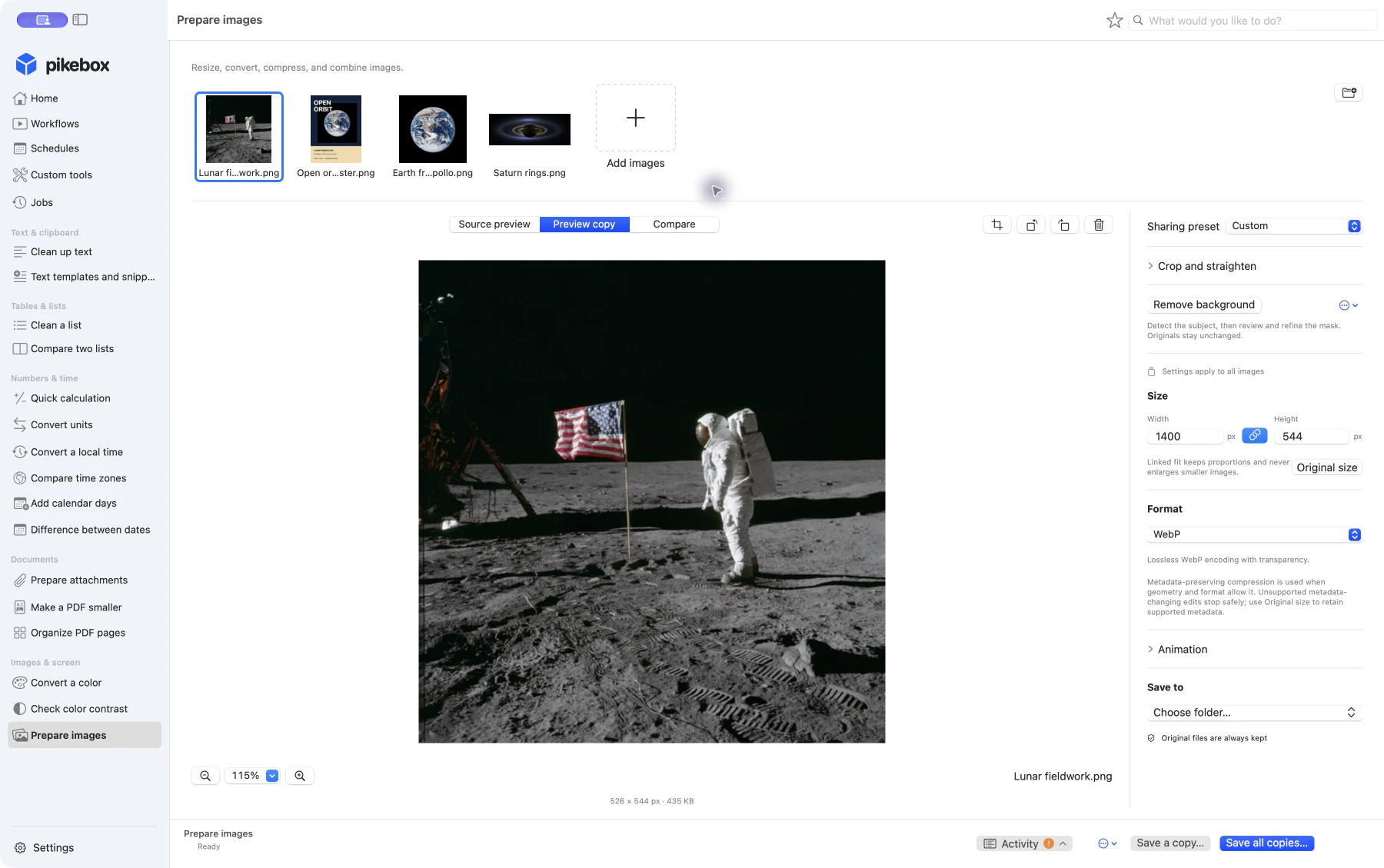
Pikebox for Mac, shown in English.
Choose images for a batch
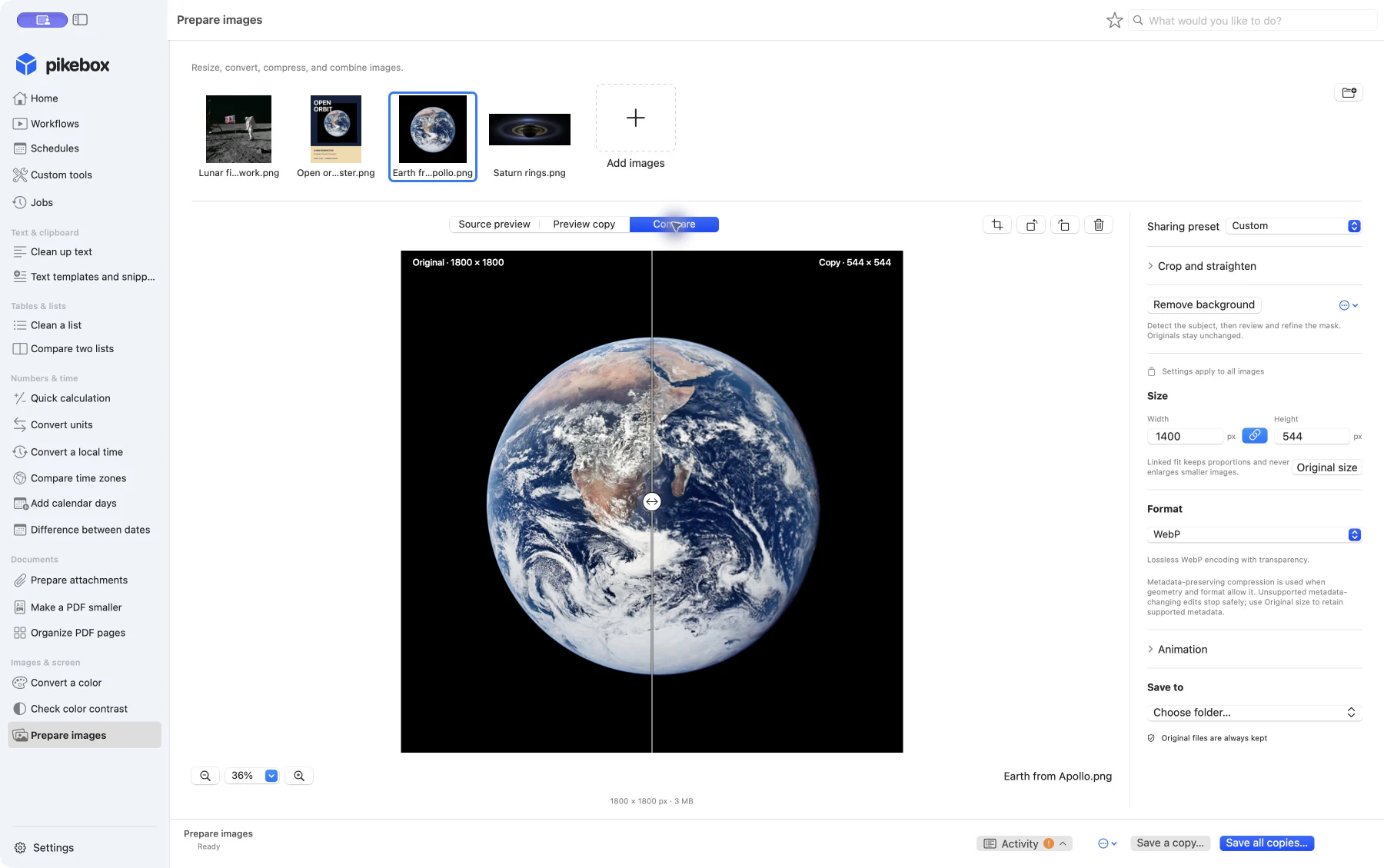
Four sample images share the same size and WebP settings. Here the linked limits are 1400 × 544 pixels: each copy fits inside both limits without stretching. The lunar photo becomes 526 × 544 pixels; the square Earth photo becomes 544 × 544 pixels.
- Click a thumbnail to focus one image. Use Command-click to add or remove separate thumbnails from the selection, or Shift-click to select a range.
- The preset, size, and format apply to all images. Crop, trim, straighten, and background edits belong to the focused image. Flip and rotate affect the selected images. The selected count helps you check the scope before editing.
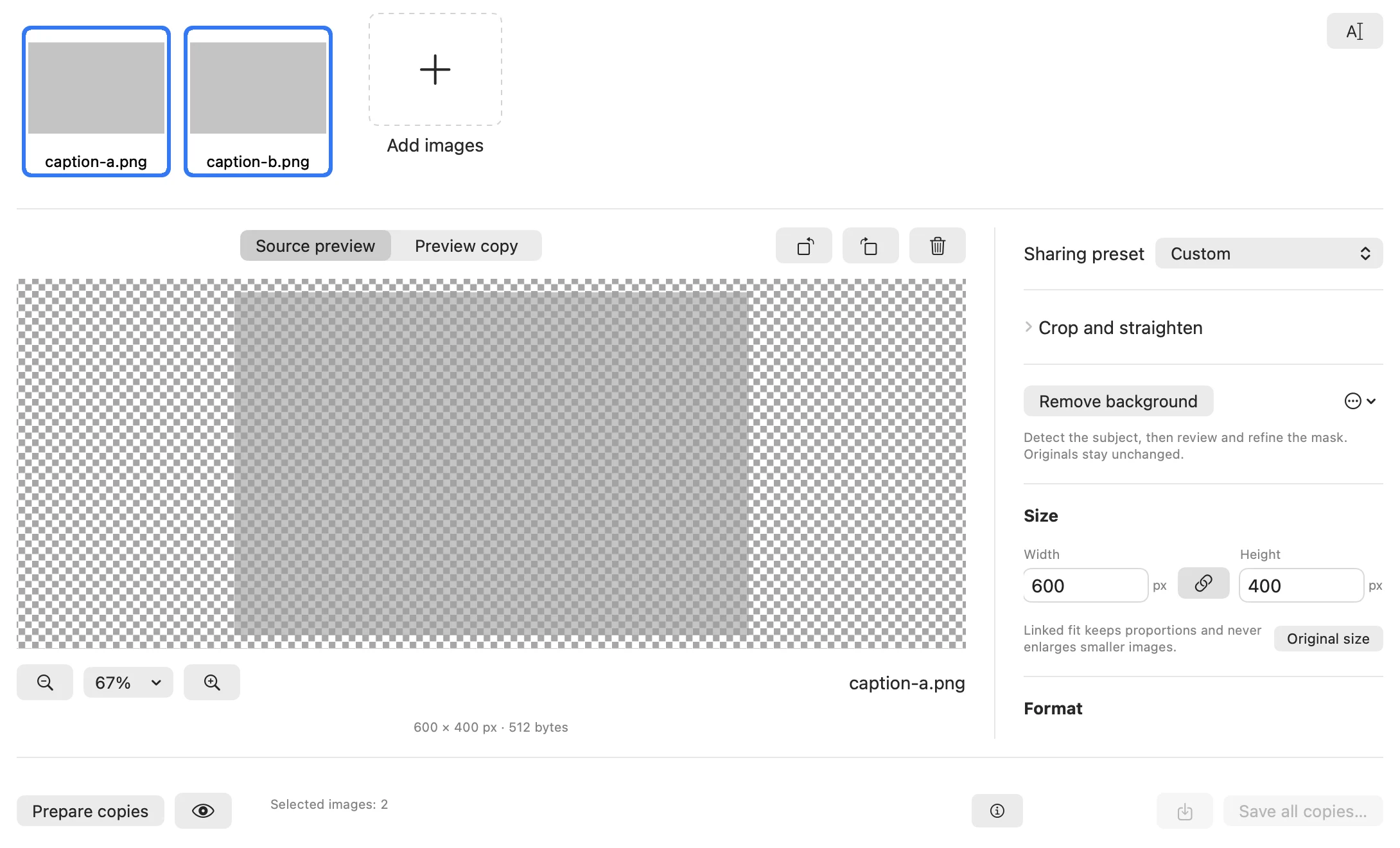
Pikebox for Mac, shown in English.
Resize, compress, or convert images
- Choose a Sharing preset or set the options yourself. The Web preset uses WebP at up to 1600 pixels, and Email uses JPEG at up to 1280 pixels.
- In Size, set Width and Height. Keep them linked to fit within both limits without stretching the image. Unlink them only when you want an exact size and accept changed proportions. Pikebox does not enlarge smaller images. Original size clears the resize.
- Choose a Format. PNG and lossless WebP keep transparency, as does supported single-image TIFF. JPEG and BMP need an opaque image. GIF uses a limited color palette. Lower the Quality for a smaller JPEG, then inspect the result for lost detail.
Prepare several photos together when they need the same size and format. Individual crops and backgrounds can differ. If a file cannot be edited without losing unsupported metadata or color information, try its original size and format, or keep the original.
Choose a preset, size, and format
- Choose Web · WebP, 1600 px for lossless WebP, Email · JPEG, 1280 px for JPEG quality 80, or Original-size PNG for a PNG with no size limit. Use Custom to keep your own settings.
- With linked dimensions, each image fits within both dimensions at its original proportions. Unlink them to specify an exact size. Choose PNG, WebP, or compatible TIFF to keep transparency. A JPEG quality slider appears for JPEG only.
Crop, straighten, rotate, and flip
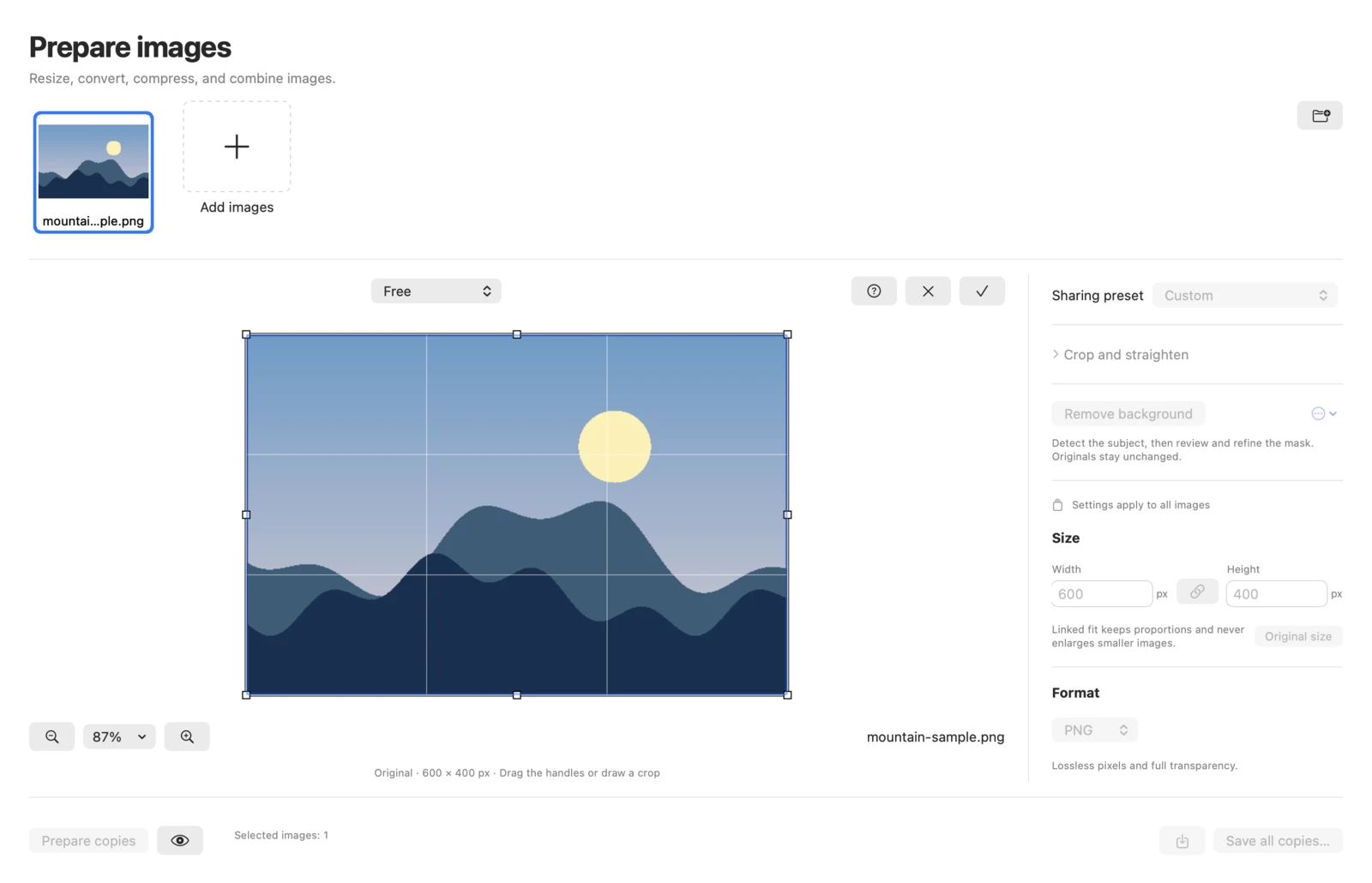
The crop editor in Pikebox for Mac, shown in English.
- Select a photo and choose Crop image. Draw a crop or drag the handles. Move the crop by dragging inside it. Choose Crop proportions to keep a specific shape.
- Press Return or choose Apply crop. Press Escape to leave without applying the draft. Use the arrow keys for fine movement, or add Shift for larger steps.
- Open Crop and straighten for Center square, Trim transparent edges, or Straighten. Straightening can leave transparent corners. Use PNG, WebP, or TIFF to keep them. The toolbar rotates the selection 90° at a time, and the geometry controls can flip selected images horizontally or vertically.
Silent demo showing the image preview and then the crop editor.
Fine-tune the crop and geometry
- Choose Free, Original ratio, 1:1, 4:3, 3:2, 16:9, Lock width, or Lock height. Shift keeps proportions, Option resizes from the center, and Space moves the crop while you draw. Use Option plus arrow keys to resize the crop from the keyboard.
- Open Precise crop coordinates (advanced) to enter Left, Top, Width, and Height in pixels. Trim transparent edges removes fully clear borders only. Straighten up to 15 degrees either way, or use Reset geometry to clear geometry edits.
Remove or replace a background
- Select the photo and click Remove background. In Background options, choose Start a manual mask if you want to mark the subject yourself.
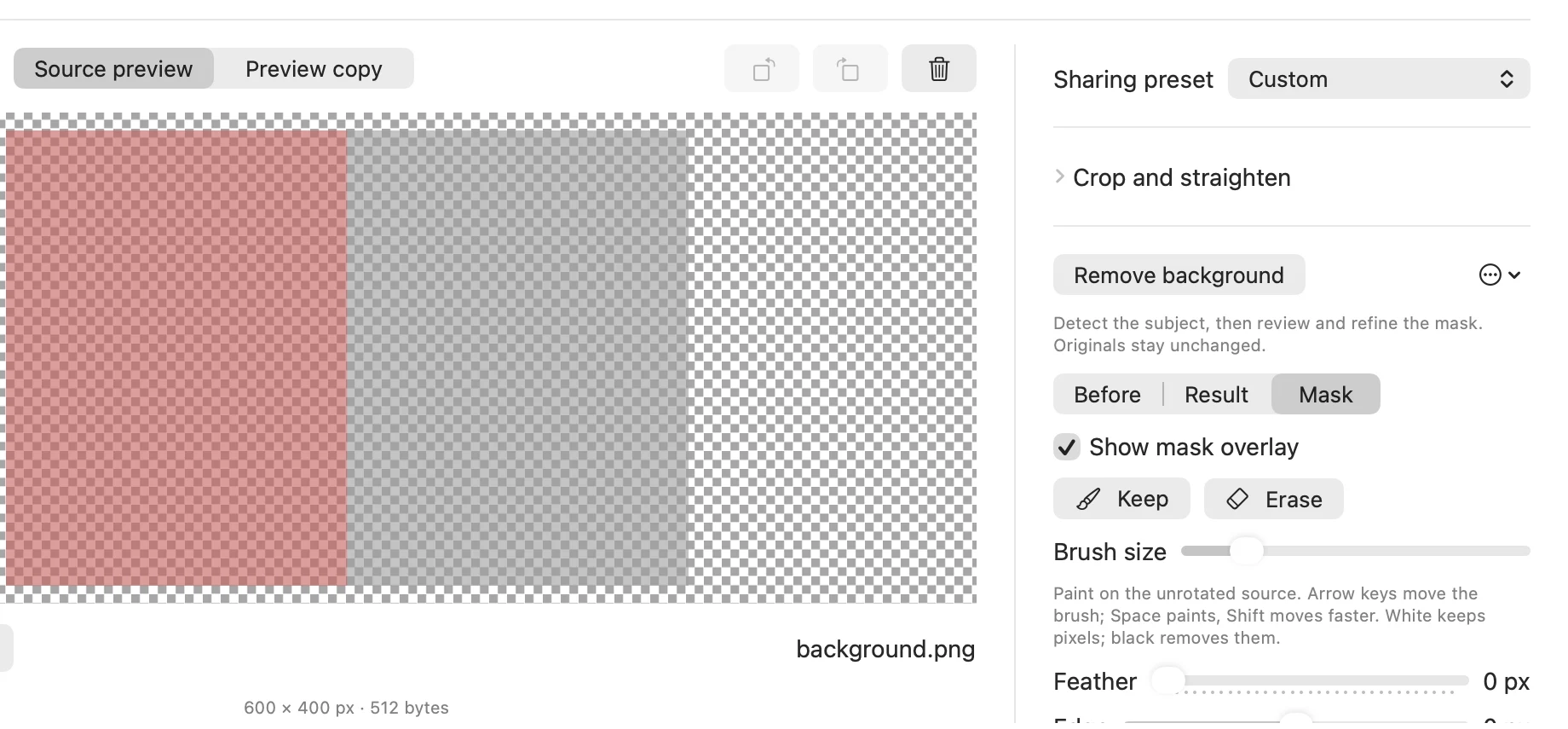
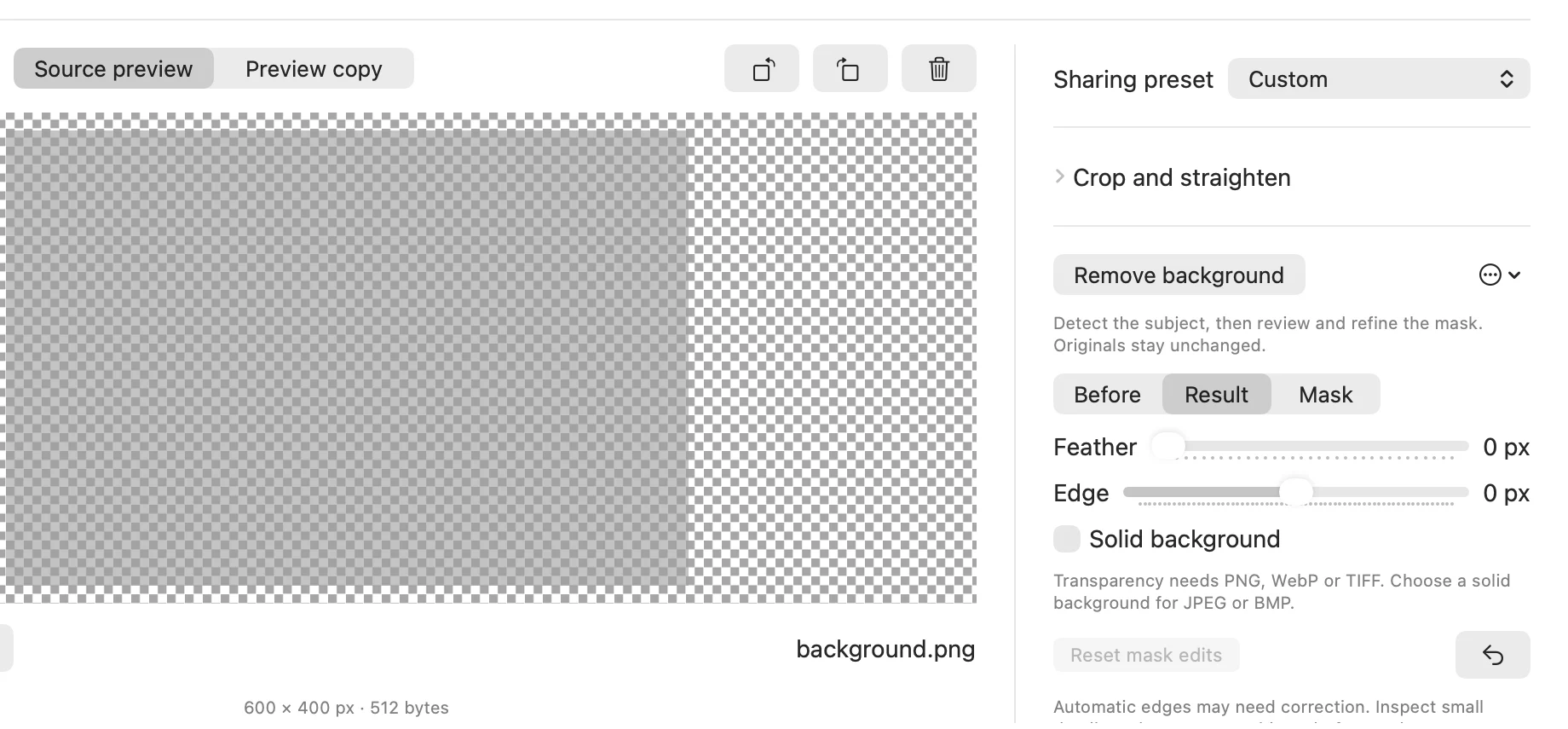
- Use Before, Result, and Mask to compare views. In the mask, paint with Keep or Erase. Change Brush size as needed. With the brush focused, arrow keys move it and Space paints.
- Use Feather to soften the edge and Edge to shift it. Inspect fine detail before preparing the copy. To replace transparency with a color, enable Solid background and pick a color. Use PNG, WebP, or TIFF for a transparent result. Reset mask edits resets refinements and Restore background removes the background edit.
Inspect the mask and refine its edge
- Use Show mask overlay in Mask view to see the mask on the unrotated source. Choose Keep to restore the subject or Erase to remove background. With the brush focused, arrows move it, Shift moves faster, and Space paints.
- Increase Feather for a softer boundary and adjust Edge to move the boundary. Check fine details in Result. If detection finds no subject, start a manual mask. Undo a stroke or reset mask edits if needed.
Pikebox for Mac, shown in English.
Pikebox for Mac, shown in English.
Make an animated GIF
Select two or more still images in the strip and open Animation. The order in the strip is the playback order. Use Move earlier and Move later to change it. Set Frame duration (ms) for each frame in steps of 10 ms, then choose Loop forever or a repeat count. Click Create animated GIF, preview the result, and use Save animated GIF… if shown, or the save button while previewing the animation. GIF limits colors and turns partial transparency into either clear or opaque pixels.
Set frame timing and looping
- Select at least two images. Reorder them in the strip, then focus each thumbnail to enter its frame duration. For example, 100 ms is one tenth of a second. The field accepts multiples of 10 ms, from 10 to 655,350.
- Turn on Loop forever or enter how many times to repeat after the first cycle. The images fit a common canvas without being enlarged. Create the GIF, turn on Preview animated GIF, and use the animation’s save action.
Compare and save your copies
Click Prepare copies, then select Preview copy or Compare. Drag the divider to inspect the original and copy. A preview made before your latest edit may need to be prepared again.
Use Save a copy… for one prepared copy or Save all copies… for a group. Pick a destination in Save to. If only some files succeed, review the messages on the affected files and save the ready copies. If a save is uncertain, use Check save status before retrying.
Compare before saving
Sample images; Mac interface shown in English.
- After preparing copies, choose Source preview, Preview copy, or Compare. Drag the divider, or focus it and use Left or Right for 1% steps. Add Shift for 10% steps. Home and End show one side completely.
- If you change settings after preparing a copy, prepare it again before comparing. Use the zoom controls to inspect fine detail and Open in default viewer if you want to inspect the prepared result in another app.
Save a batch and recover incomplete results
- Choose Choose folder… under Save to. Save the focused prepared copy with Save a copy…, or use Save all copies… for the ready batch.
- Read the individual issue when a file cannot be prepared. A smaller image or the original size and compatible format may resolve resource or metadata limits. Save the ready copies and use Check save status before trying an uncertain save again.
Convert a color
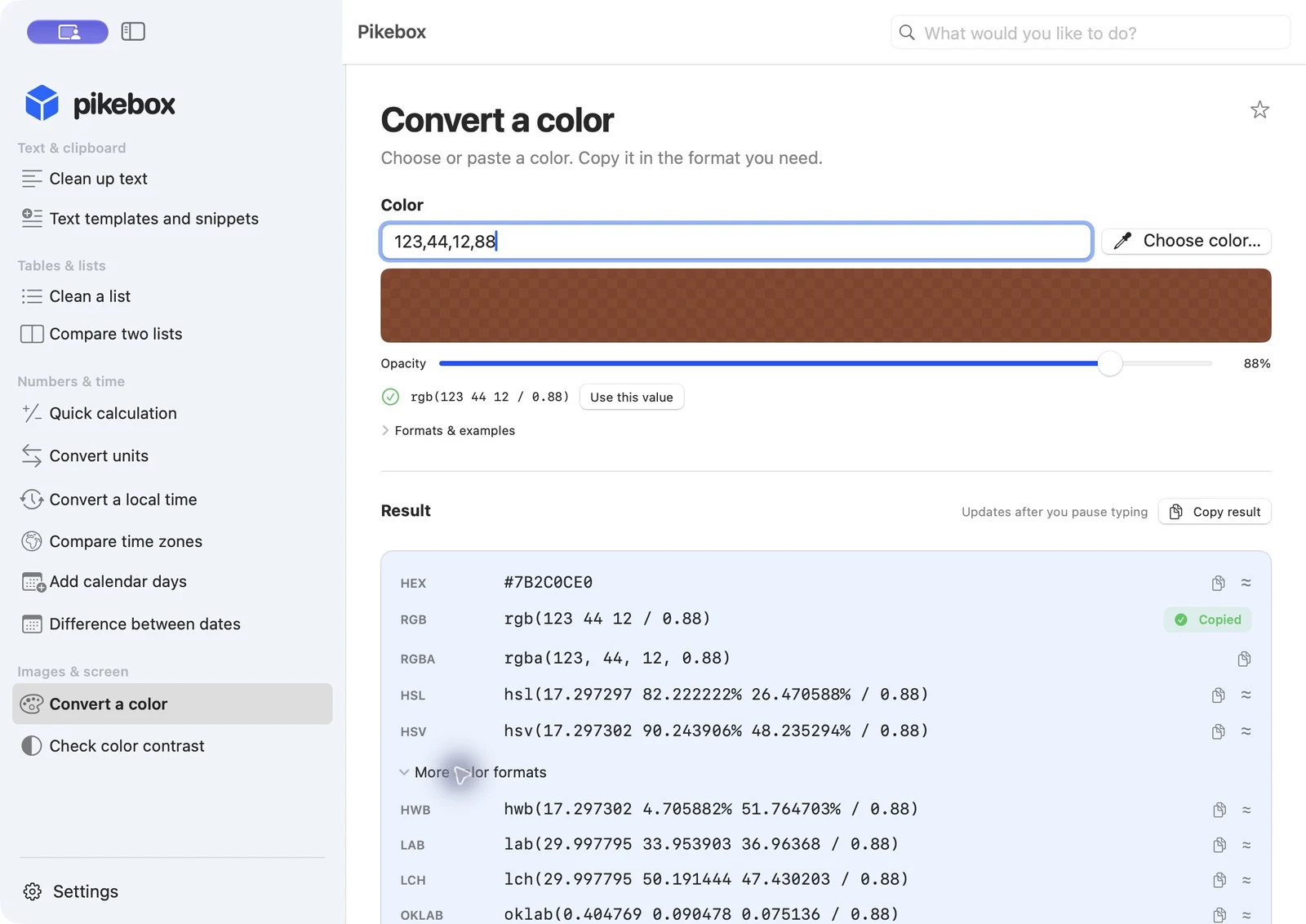
Open Convert a color. Paste a value such as #0866FF into Color, or open the color picker. Adjust opacity if the color needs to be translucent. Under Formats & examples, you can see examples of accepted values. Click a result to copy it in the format you need, such as Hex, RGB, RGBA, or HSL. Expand the list of additional formats for more choices.
Pikebox for Mac, shown in English.
Check color contrast
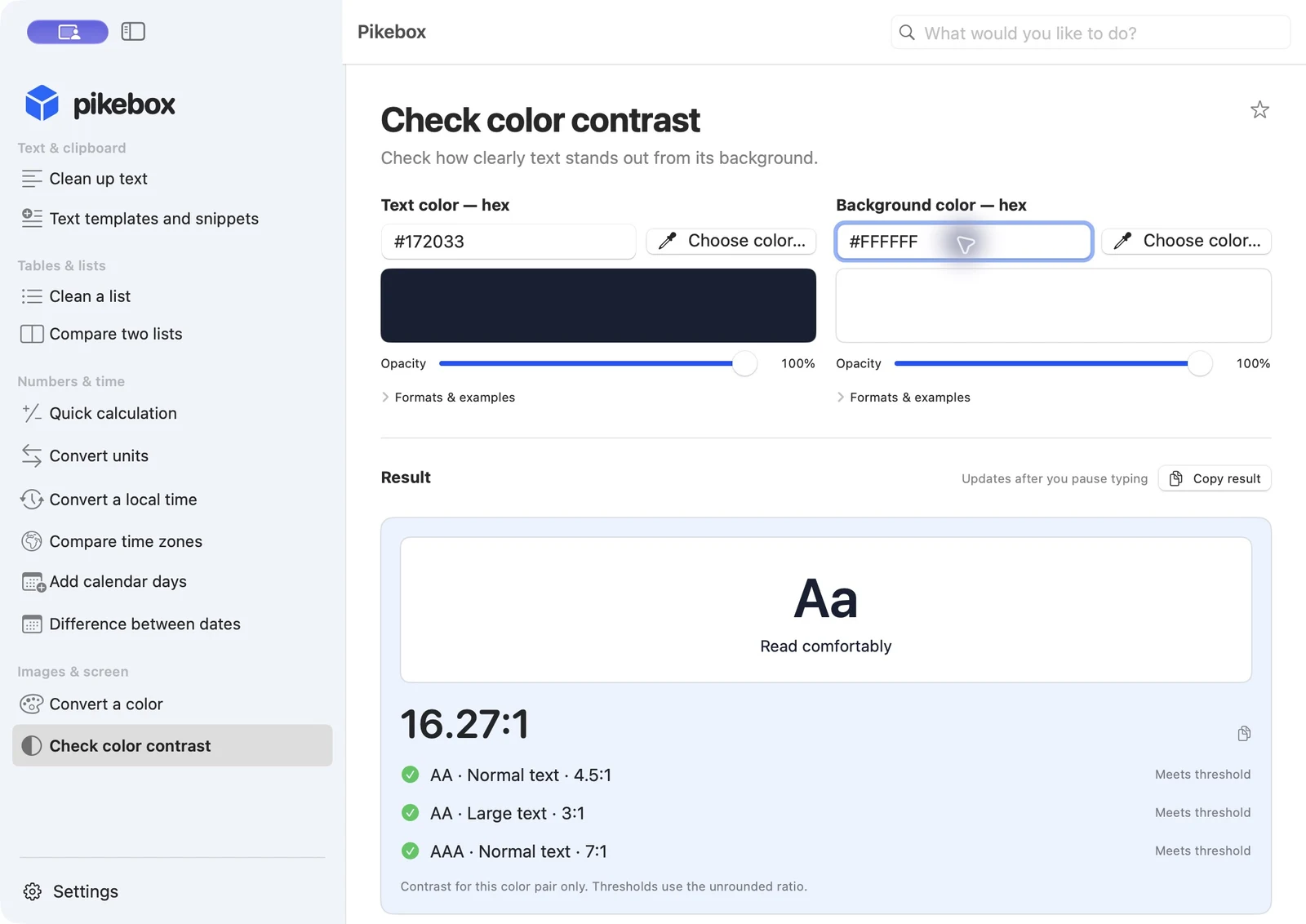
Enter or pick a Text color and Background color. Use an opaque background. Pikebox shows a sample and the contrast ratio, and marks which checks the color pair passes. For ordinary text, look for at least 4.5:1 for AA. Large text uses 3:1, and AAA for normal text uses 7:1. If contrast is low, try a darker text color on a light background or a lighter one on a dark background. The result applies to the two colors entered.
Pikebox for Mac, shown in English.