

Your first task
Find a tool or add a file. Pikebox helps you find the next step.
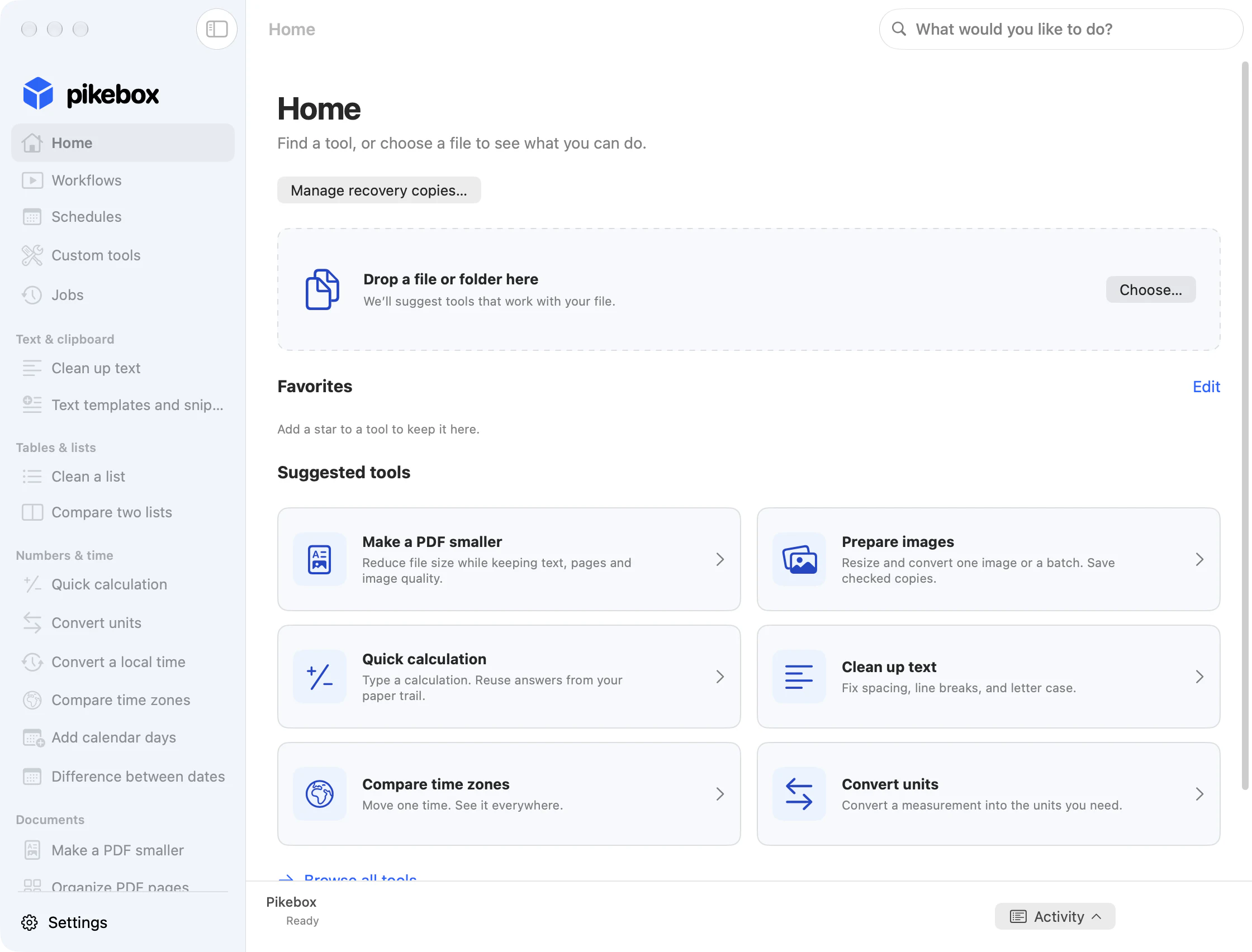
Pikebox Home on Mac, shown in English.
Find a tool
Open Pikebox and choose Home. Start with Suggested tools, reopen a tool from Recently used, or select Browse all tools to see what’s available. The sidebar also groups tools by the kind of work you want to do.
If you have a task in mind, click What would you like to do? or press Command-F. Try typing “smaller PDF” or “clean up text,” then choose a result. Use Tab to move through controls and Return to open the highlighted tool.
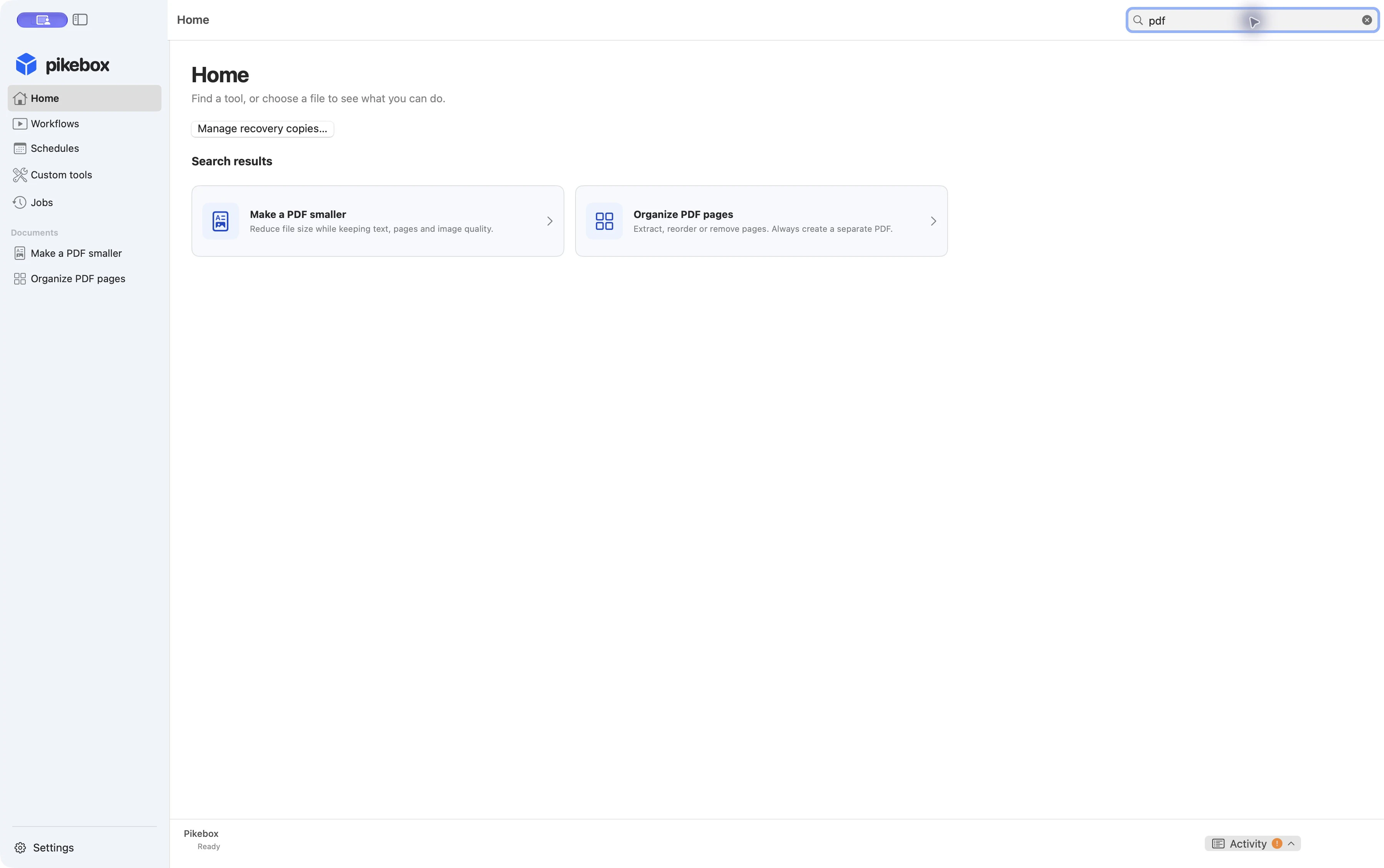
App search finds tools; it does not search the contents of your files.
Search this guide
- Click the search bar in the website header, or press Command-K on Mac or Ctrl-K on Windows and Linux.
- Enter a task or an option, such as “combine PDFs” or “time zones”. Search includes the overview, guide chapters, individual sections, and tool list in your selected language.
- Use the up and down arrows to choose a result, then press Return. Click a result if you prefer. Press Escape to close search and return to the page.
The website shortcut searches these instructions. Command-F inside the Pikebox app finds an application tool.
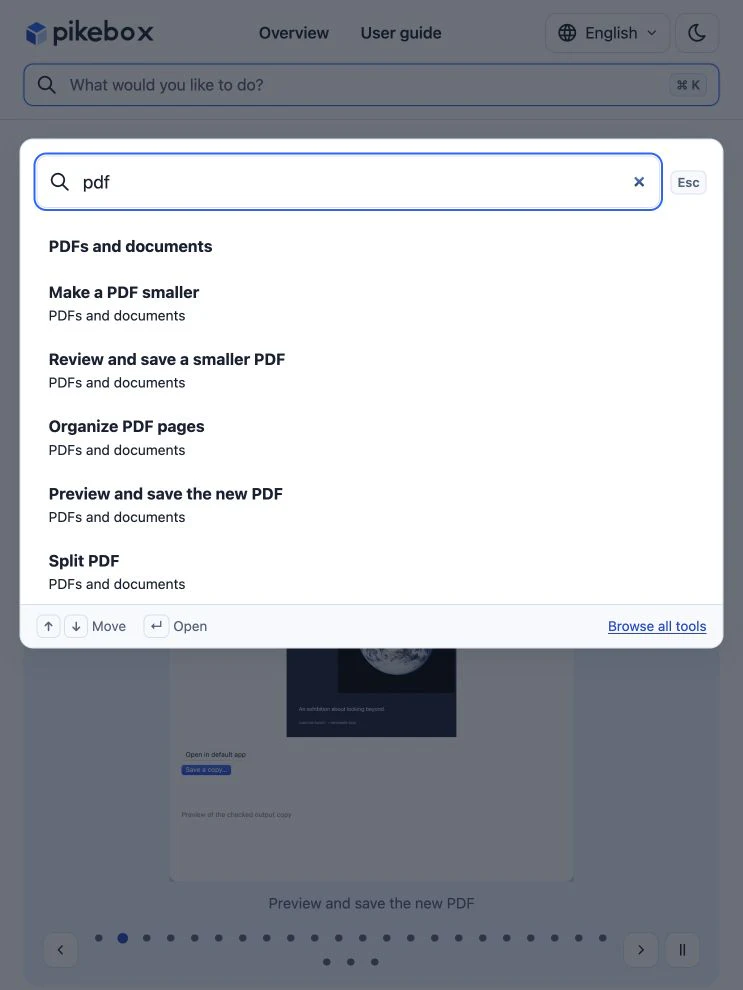
Search on this website, shown in English.
Choose a file
- Drag a file from Finder onto the drop area on Home, or click Choose….
- Choose one of the suggested tools. For example, add a photo to find Prepare images.
- Follow the tool’s prompts. For tools that accept several inputs, add more from inside the tool.
If there are no suggestions, choose a supported file or open the tool first to see which types it accepts. For a folder, check the tool or workflow for its folder options before starting.
Save a copy
Preview the result if the tool offers a preview. Choose Save a copy…, enter a name, and pick a folder. Some tools label the save button differently when you select several copies. Pikebox keeps the source files. For text and numbers, use Copy result to paste the result into another app.
Use Jobs to find earlier file results. Select the job, then use Show saved copy in Finder when the copy has already been saved. A result marked Ready may still need saving.
Keep favorite tools handy
Open a tool and click its star to pin it to Favorites on Home. Click the star again to remove it. Choose Edit next to the favorites on Home, or go to Favorites and keyboard shortcuts in Settings. Use the arrows to reorder the list.
To open a favorite from another app while Pikebox is running, click the shortcut field next to it and press your chosen key combination. Pick another combination if it is already in use. Use Clear to remove the shortcut.
Use keyboard shortcuts
- Command-F finds a tool. Command-1 returns to Home.
- Command-Return runs the current tool when its Run action is available.
- Command-Shift-C copies the current result when available.
- Command-comma opens Pikebox Settings.
- Command-plus, Command-minus, and Command-0 adjust or reset the interface text size.
On this website, Command-K or Ctrl-K searches the guide.
Change language, appearance and text size
Open Settings in the sidebar. In Language, pick the language you want for Pikebox. Under Appearance, choose System to follow your Mac, or select Light or Dark. Use A+ and A− to resize the app text. The contents of your files keep their original size.
In versions that offer Notifications, enable them to get an alert when work finishes or needs attention. You can change this permission in macOS System Settings. Find results in Jobs at any time. In General, use Confirm before quitting if you want Pikebox to ask before it quits.
If AI integrations is available, use Choose apps… and Connect selected to connect a supported AI app. Allow a session only after starting the app or command yourself. Use End session to disconnect it. Files and results you share with an AI app may reach its provider.
Open Pikebox tools from macOS
- Quick access. In Settings, choose Show in menu bar to keep Pikebox in the menu bar, or set a Global shortcut. Open the panel, search by task, and click a result or use the arrow keys and Return.
- Spotlight. Where supported, search for a Pikebox action, for example “pdf optimize,” and choose the Pikebox result to open the tool. Index tool names in Spotlight in Pikebox settings adds tool names and descriptions to Spotlight. File contents and history stay private.
- Shortcuts. In Apple’s Shortcuts app, search the action list for Pikebox. Add an action that opens a workspace or takes an input and returns a result. To pass a checked copy to the next action, use a file-processing action that returns a file. Available actions depend on your Pikebox and macOS versions. If a run was interrupted, open Shortcuts recovery in Pikebox settings and choose Check job before trying again.
Use the menu bar icon
- Open Settings → General and turn on Show in menu bar. Click the Pikebox cube in the macOS menu bar to open Quick access.
- Type a task, choose a matching tool with the arrow keys, and press Return or Open tool. The tool opens in Pikebox. Open Pikebox brings up the main app. Press Escape or the close button to dismiss the panel.
- Right-click the cube for Quick access, Open Pikebox, Settings…, Hide menu-bar icon, and Quit Pikebox. Hiding the icon keeps Pikebox running. You can show it again in General settings.
- Set Global shortcut to open the same panel from another app. The shortcut still works when the icon is hidden. If your chosen shortcut conflicts, choose another one. Favorites appear in the panel when you have starred tools.
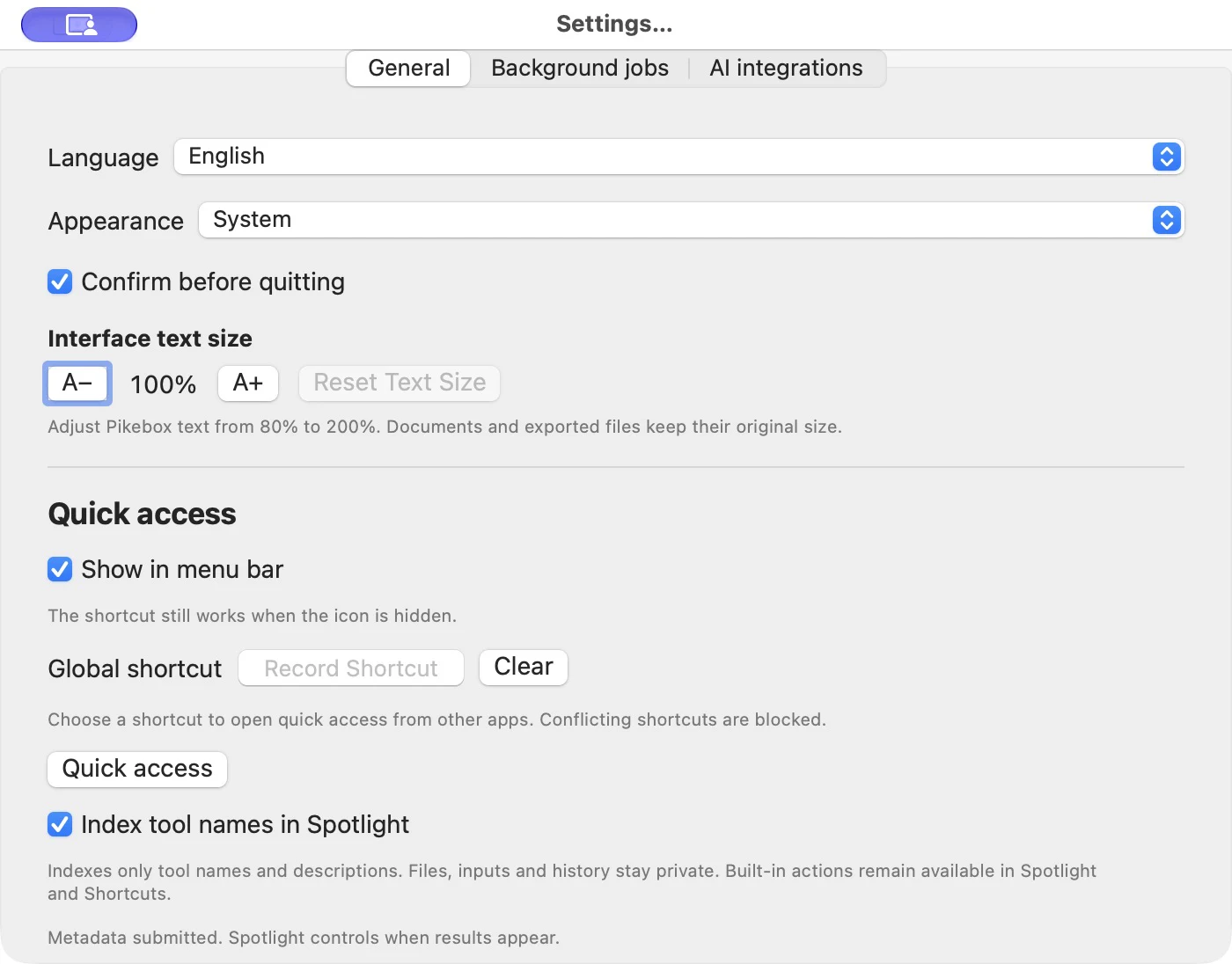
Mac settings, shown in English.
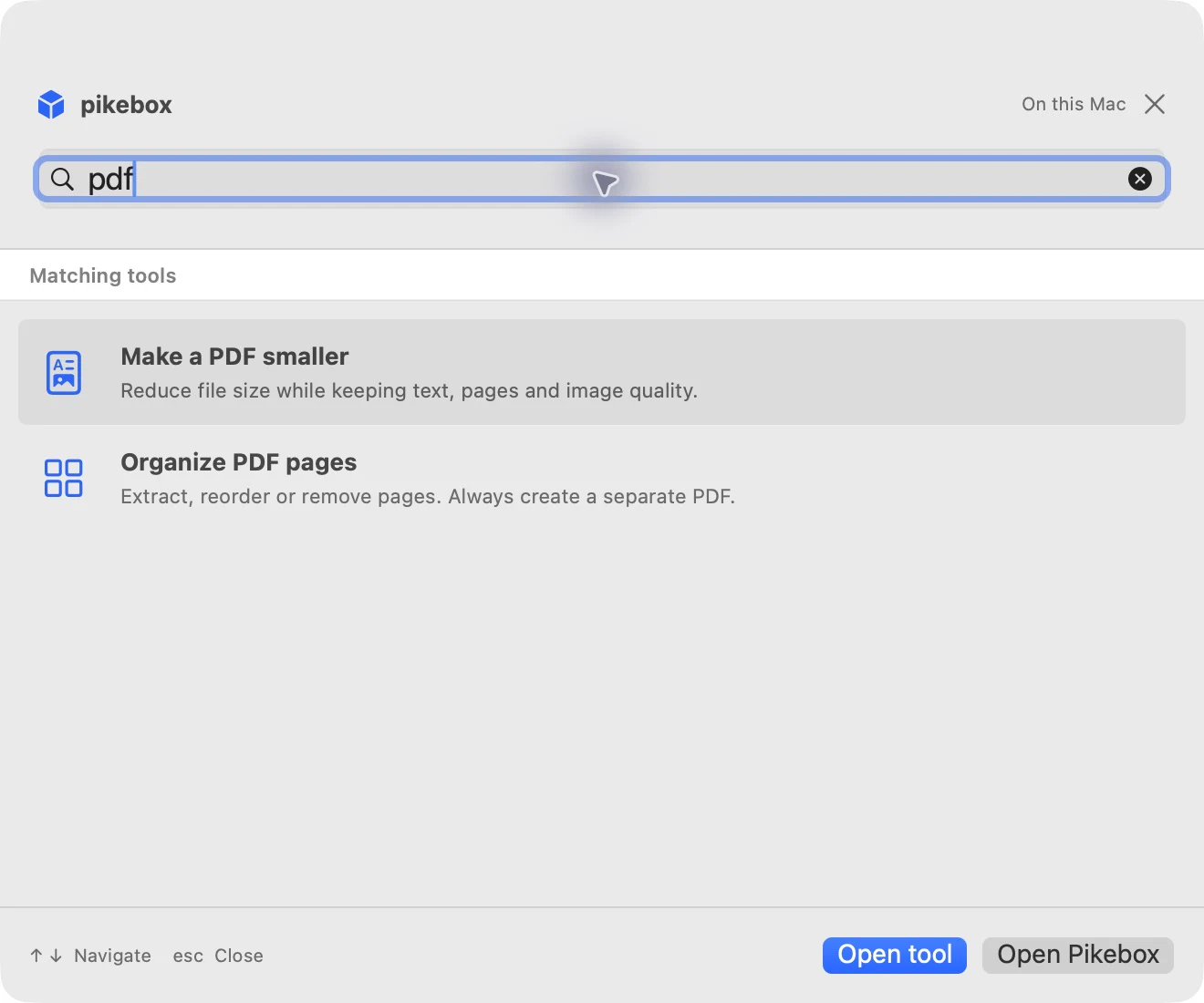
The Quick access panel, shown in English.
Solve a problem
If Pikebox can’t read a file, check that the file is still in place and choose it again. For a protected folder, respond to the macOS access request or review the app’s permissions in System Settings → Privacy & Security → Files and Folders.
If a copy can’t be saved, check the destination’s free space and write access, or choose a different folder. If Pikebox is still checking whether the save succeeded, use Check save in Jobs before repeating the save. Read the message next to any failed item to see which step needs attention.
Manage recovery copies
When Manage recovery copies… appears on Home, open it to see the workspace copies Pikebox kept before app updates. Select a copy to review its date and available actions. Restore… replaces the current workspace with the selected copy and keeps the previous workspace. Pikebox blocks restoring a copy when doing so would lose newer saved work. Use Remove… only when you no longer need that recovery copy.