

Numbers and time
Calculate, convert units, compare local times, and count calendar days.
Quick calculation
Type (2 + 3) * 4 and pause to see 20. Use * to multiply and / to divide. Formats & examples explains the separators used by your language. Use Copy result once the result is ready.
Open History to find a previous answer. Type # and select an earlier result, or use its displayed number in an expression such as #3 * 4 when result 3 exists. If a number is unavailable, enter the original calculation or value again.
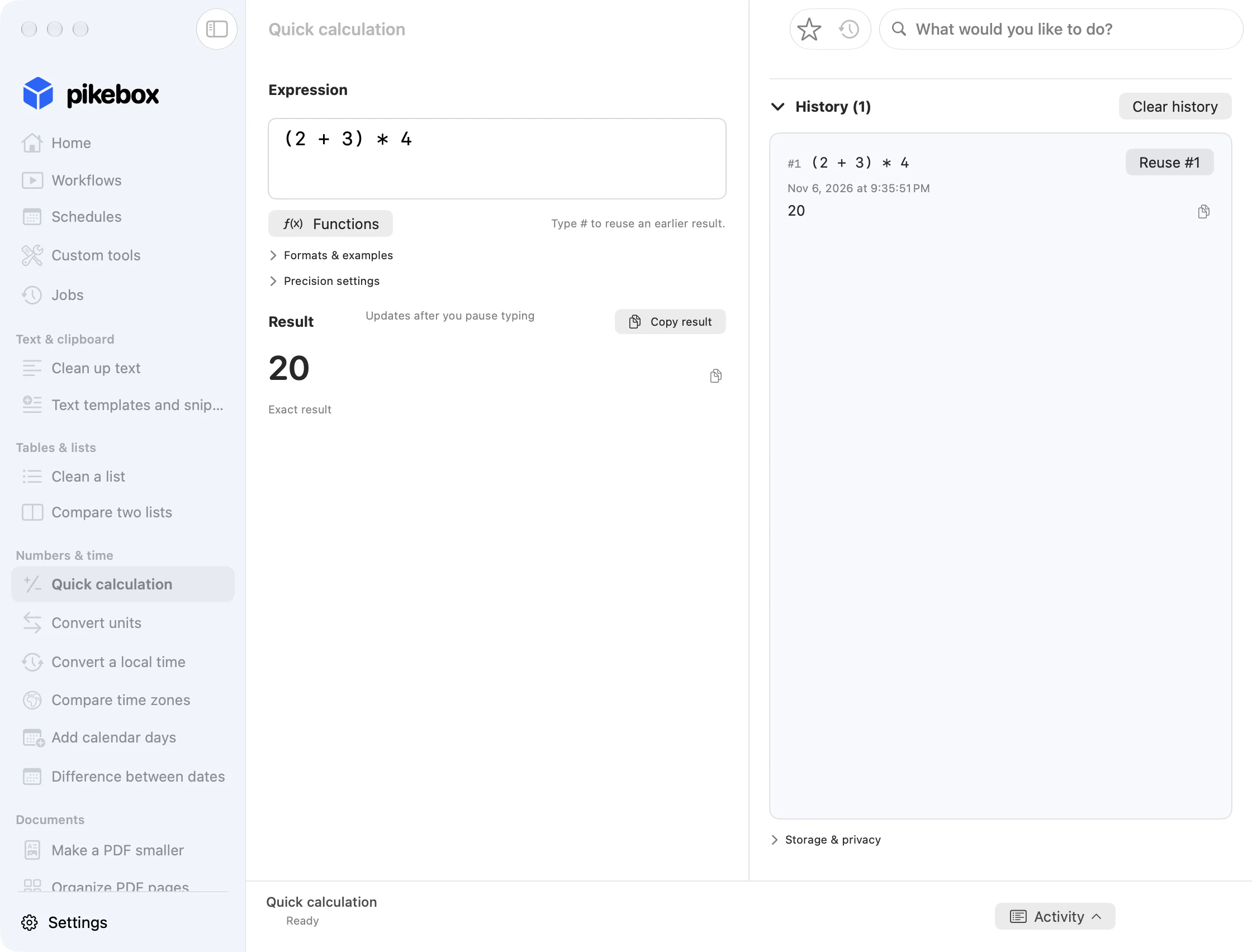
Pikebox for Mac, shown in English.
Calculator functions
- Open Functions and search in Find a function, or pick a Category.
- Select a function to insert it. Replace the example values with yours. Separate values with a semicolon.
- Try
square_root(144)for12ormean(2; 4)for3. To insert a suggestion as you type, use the arrow keys, then press Tab or Return.
Open Precision settings to set the number of significant digits for rounded or approximate results, from 1 to 1,000. Exact integers retain all their digits. When a calculation such as 1 / 3 shows a rounded decimal and an exact fraction, use the exact value when you need the fraction.
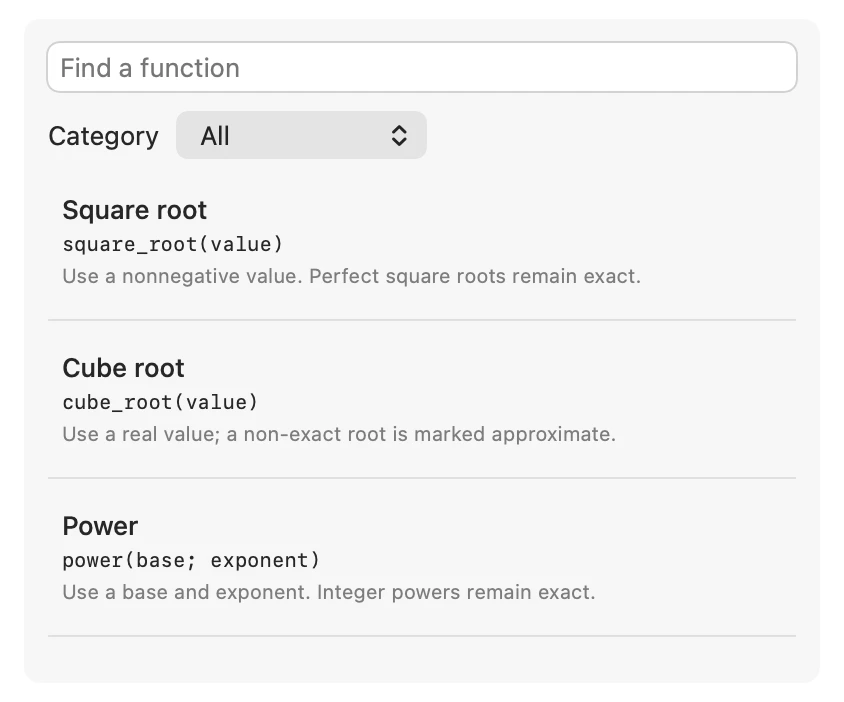
Pikebox for Mac, shown in English.
Convert units
Enter a number in Value. Choose the original unit in From and the unit you need in To. For example, 150 cm gives 1.5 m. Swap units switches the two units. The number you entered stays in the value field.
Pick units for the same kind of measurement, such as length, mass, time, data, temperature, or volume. If Pikebox flags incompatible units, check both menus. Choose Copy result when the conversion looks right.
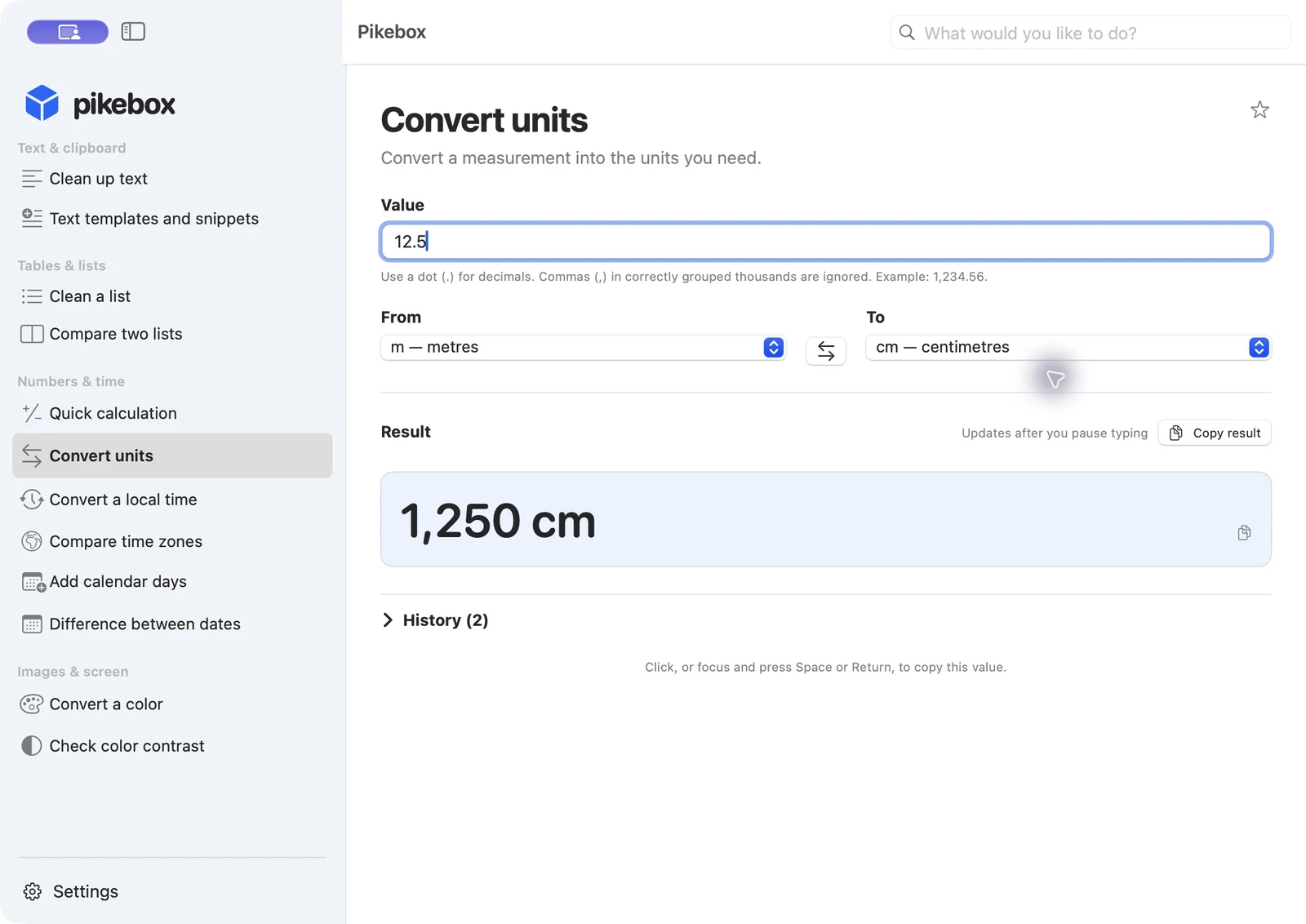
Pikebox for Mac, shown in English.
Convert a local time
- In Local date and time, enter the date and clock time or choose them with the calendar button. For a typed example, enter
2026-02-10T15:00. - In From, search for the city where that clock time applies, such as Rome, and choose its time zone.
- Under Places (shown as To in some versions), search for a destination city, such as New York. Choose a suggestion or click Add time zone once the zone is recognized. Repeat for other destinations.
- Check both the date and time in each result. In this example, it is 09:00 in New York on the same day. Choose Copy result to copy the results.
Under When clocks repeat this time, leave Ask if needed selected unless you need to choose between two occurrences. If the clocks repeat that local time, choose Earlier occurrence or Later occurrence according to which occurrence you mean. If the clocks skip that time, choose a valid time before or after the change. Check the date in each result as well as the time.
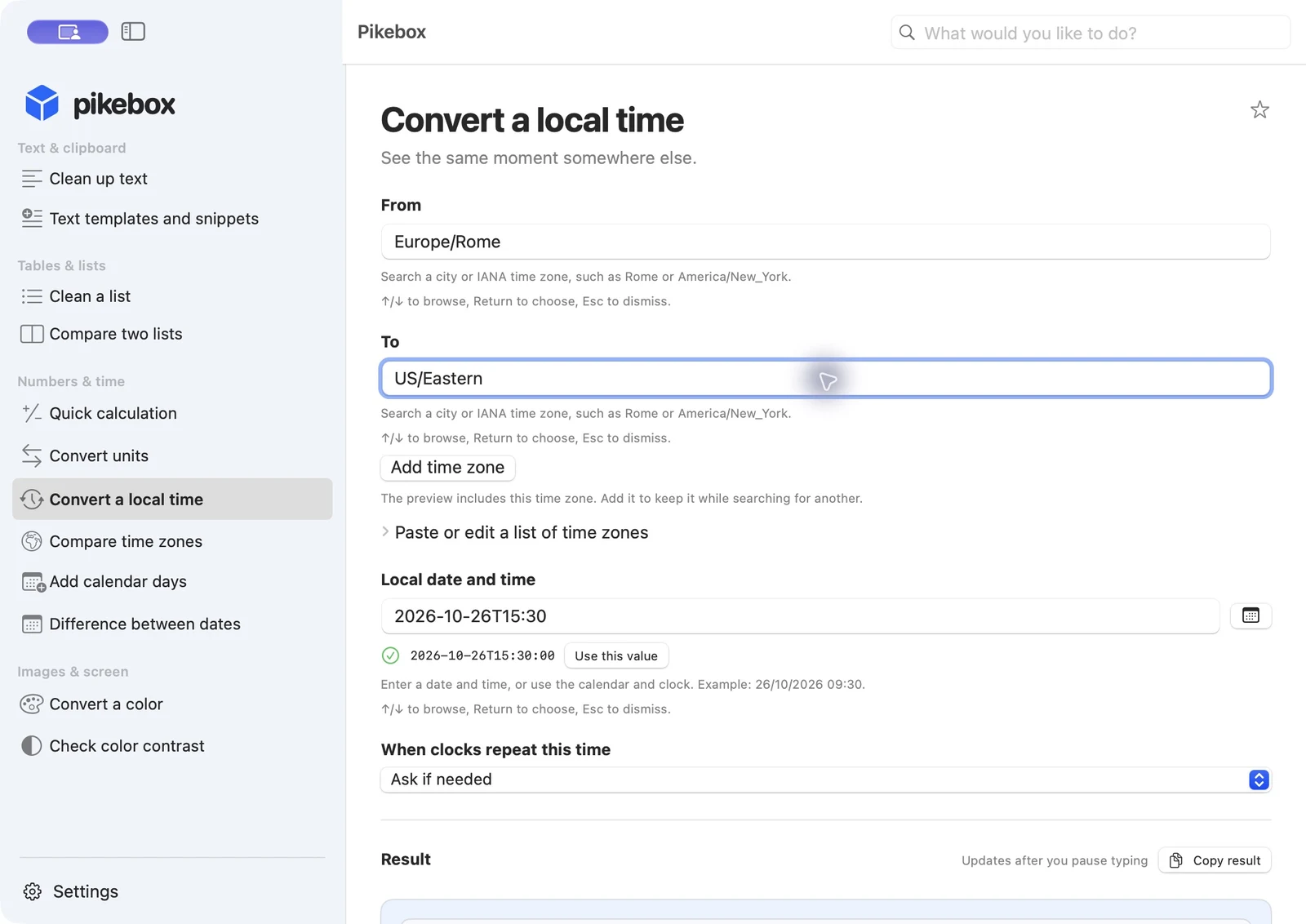
Pikebox for Mac, shown in English.
Compare time zones
Use this tool to find a meeting time that works across cities. The timeline shows the same moment in every row, even when the cities are on different dates.
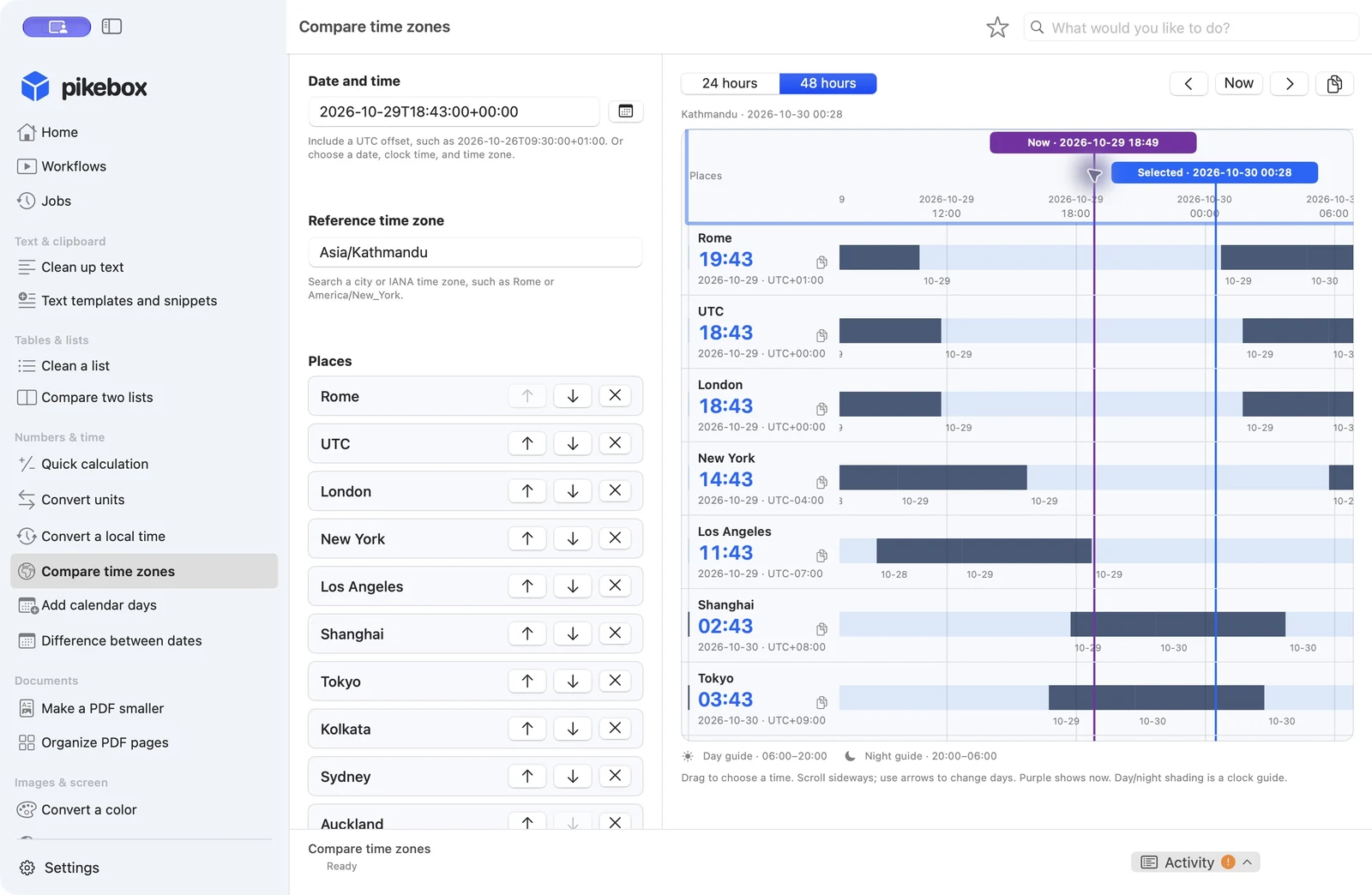
Set the date and places on the left, then compare them on the right. Pikebox for Mac, shown in English.
Set the date and reference zone
- Open Compare time zones in the sidebar. In a narrow window, open Date and time · Places with the panel button above the chart.
- Click the calendar button next to Date and time. Set Date and Time, open Time zone, find the city whose clock you are using, and choose Use time zone. Check the preview and choose Use this value. Or paste a date and time with its UTC offset, such as
2026-02-10T15:00:00+01:00for 15:00 in Rome on February 10, 2026. - In Reference time zone, search for a city and confirm a suggestion with Return. This sets the clock and date along the top of the chart. It does not change the moment you are comparing.
If clocks repeat a time, choose Earlier occurrence or Later occurrence in the calendar. If clocks skip that time, pick a valid time before or after the change.
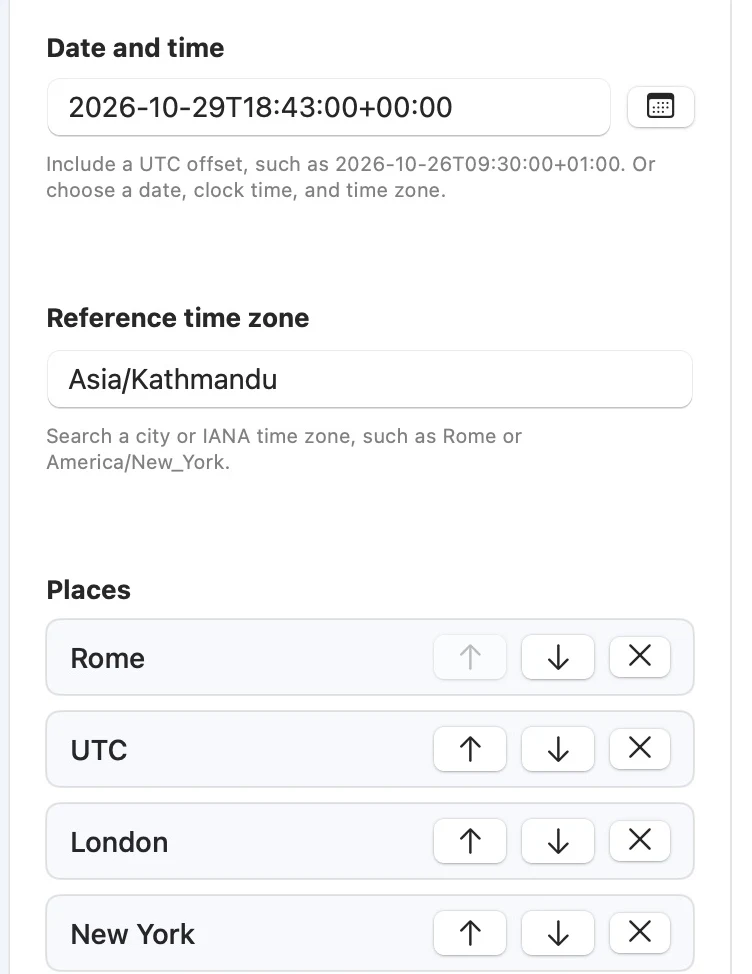
Use the calendar button to set the moment. The arrows and × beside each place edit the list. Pikebox for Mac, shown in English.
Add and arrange the places
- Under Places, type a city or a time-zone name such as
America/New_York. Select the suggestion with Return or click Add time zone once the name is recognized. Use ↑ and ↓ to browse suggestions, or Esc to close them. Repeat for each city. - To enter several places at once, open Paste or edit a list of time zones. Put one zone name on each line, for example
Europe/RomeandAsia/Tokyo. Common places replaces the list with a starter set including your Mac’s time zone and UTC. - Move a place with the up or down arrow beside it, or drag it to a new spot. Click × to remove it. The chart follows the list order.
Find a time on the timeline
- Choose 24 hours for one day or 48 hours to see further. Scroll sideways to see more hours, or use Previous day and Next day above the chart to move the visible day without changing your selection. Scroll down if there are more places.
- Click or drag on the hour scale or a city’s colored bar. Release to set that moment in Date and time. With the hour scale focused, use the left or right arrow key to move one minute at a time.
- The blue Selected line marks the time you chose. The purple Now line marks the current time. Click Now above the chart to select the current time and bring it into view.
The lighter band marks 06:00–20:00 on each city’s local clock. The darker band marks 20:00–06:00. These bands are a clock guide, not a measure of daylight or working hours.
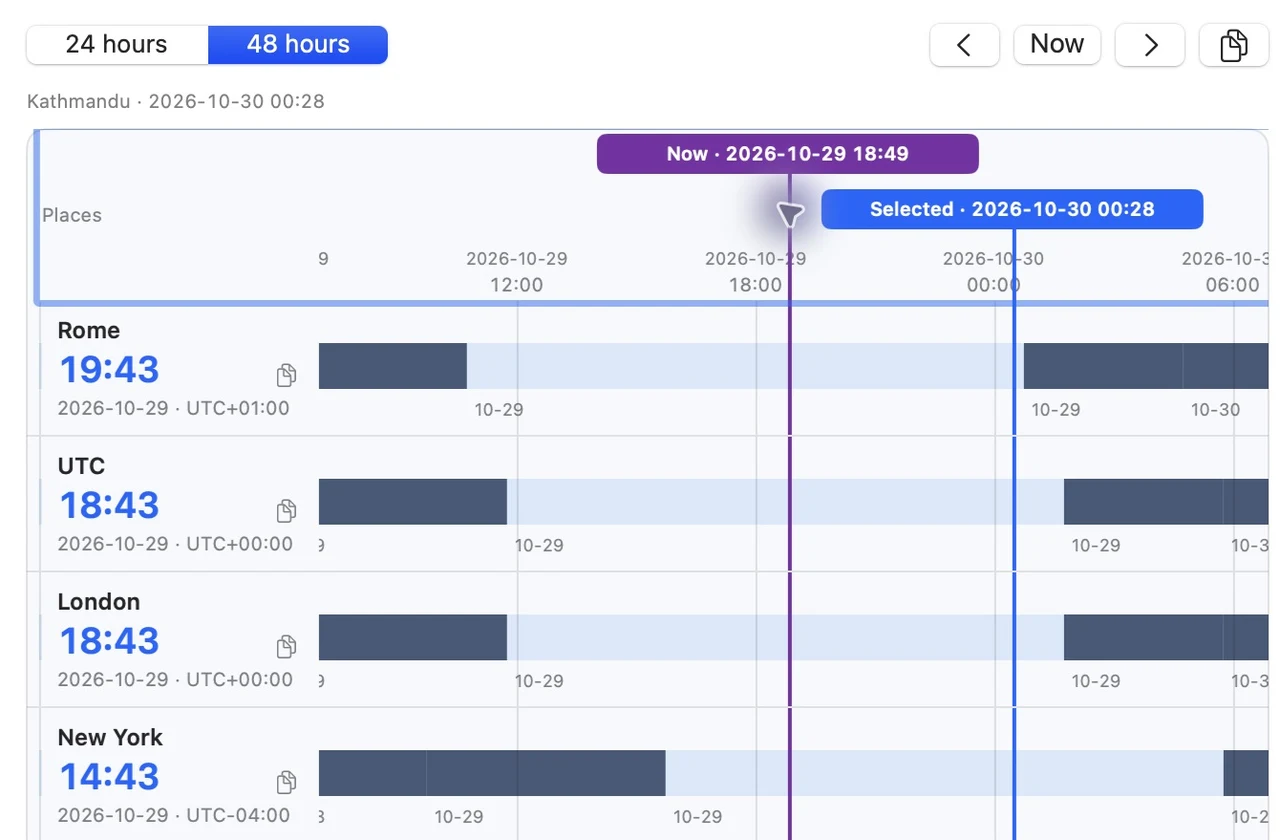
Read each city’s time beside the blue line. Use the arrows by Now to move the view. Pikebox for Mac, shown in English.
Read the rows and copy the result
- Read the local time, date and UTC offset beside each city. For example, 15:00 on February 10, 2026 in Rome is 09:00 the same day in New York and 23:00 in Tokyo. Check the dates when comparing times near midnight. If your version has a Table button, choose it to switch to a simpler list of the same values.
- Click the copy icon next to a city’s time to copy its full date and time with the offset. Use Copy result at the top right to copy every place as text, one line per place. Paste the text into a message or note.
- If Copy result is unavailable, check Date and time and add at least one valid place. The chart can show a preview even when those entries are incomplete. If you save results, check History below the controls to find an earlier comparison.
Add calendar days
Choose Date in the calendar or enter a date with a four-digit year. Enter a whole number in Days to add (negative to subtract). Use a minus sign to move backward. For example, February 10, 2026 plus 7 gives February 17. Enter -7 to get February 3.
Pikebox counts calendar days, including weekends and holidays. If a typed date could mean two different dates, choose the intended suggestion or use 2026-02-10 for February 10, 2026.
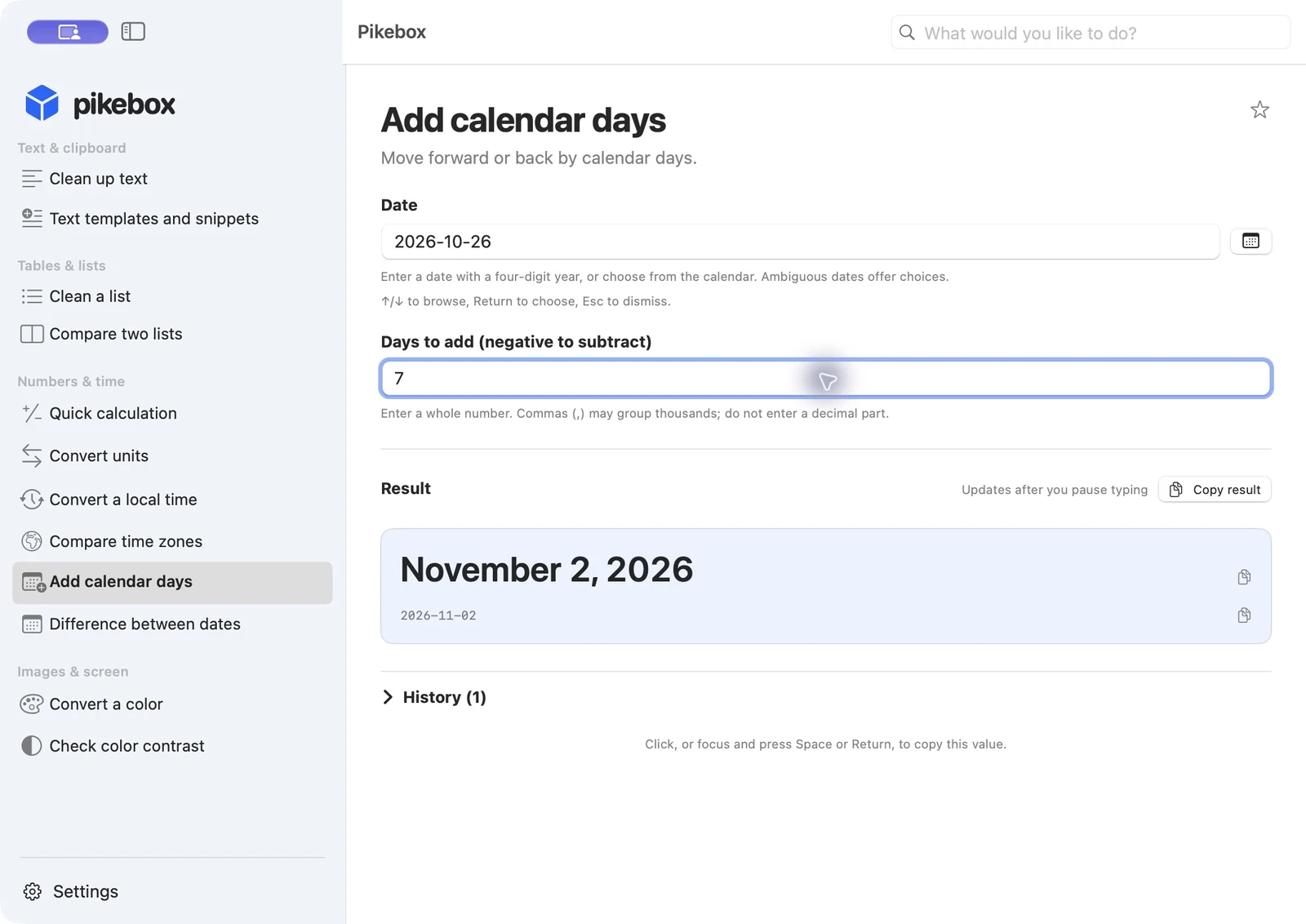
Pikebox for Mac, shown in English.
Difference between dates
Choose Start date and End date to count the calendar days between them. February 10 to February 17, 2026 gives 7 days. The end date is excluded. Equal dates give zero and an earlier end date gives a negative result.
If the result looks wrong, check the order and year of both dates. Use the calendar when the day and month could be read in either order. Choose Copy result to copy the count.
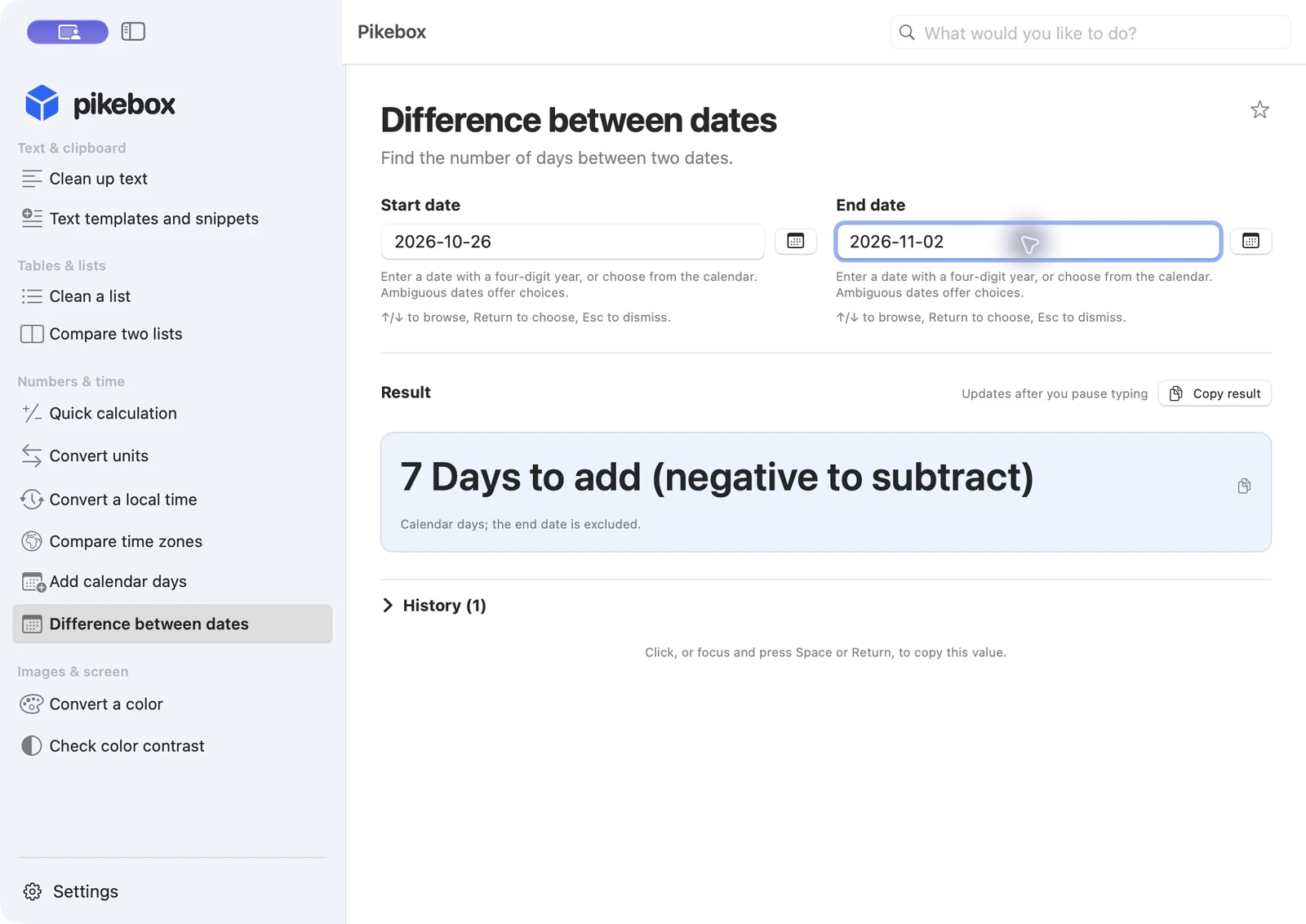
Pikebox for Mac, shown in English.