

Advanced tools
Use Pikebox from Terminal or connect an AI app you trust.
Use the command line
Keep Pikebox open and open Terminal. If you have set up the pikebox command, run the examples below. You can also give Terminal the full path to the Pikebox command inside your app bundle.
Contents/Resources/Core/pikebox
pikebox tools list
pikebox tools describe calc.evaluate
pikebox calc evaluate --request-json '{"expression":"(2+3)*4"}'
pikebox help
Start with a calculation. Discovery lists the tools in your build, and the description shows the inputs a tool accepts. Use --output json if another program needs to read the result. If Pikebox asks you to approve a connection, allow only the command you just started.
Connect an AI app
An AI app can ask Pikebox to run local tools through MCP. MCP carries the tool requests and results. Pikebox also installs a small guidance skill where the app supports it: the guidance helps the assistant choose tools and handle Jobs, but does not connect the app or grant permission by itself.
Install the AI app first and sign in if it requires an account or provider. Keep Pikebox open while you set up and use the connection. Connecting an integration does not install the AI app or provide an AI subscription.
Install for one or several apps
- Open Pikebox → Settings → AI integrations. The list shows supported apps, including apps that have not been detected.
- Turn on the global access switch when you want to allow connections.
- For one app, turn on its row switch.
- For several apps, click Choose apps…, tick the apps you want, then click Connect selected. These checkboxes select a setup or removal operation; ticking one does not change live access.
- For all detected supported apps, click Connect all installed. This uses the apps detected for that operation. Installing another AI app later does not connect it automatically.
- Read each app’s result. Follow any action shown for that app, reload or restart it if requested, and review its own server-trust prompts. A configured registration still needs the session approval and tool check below.
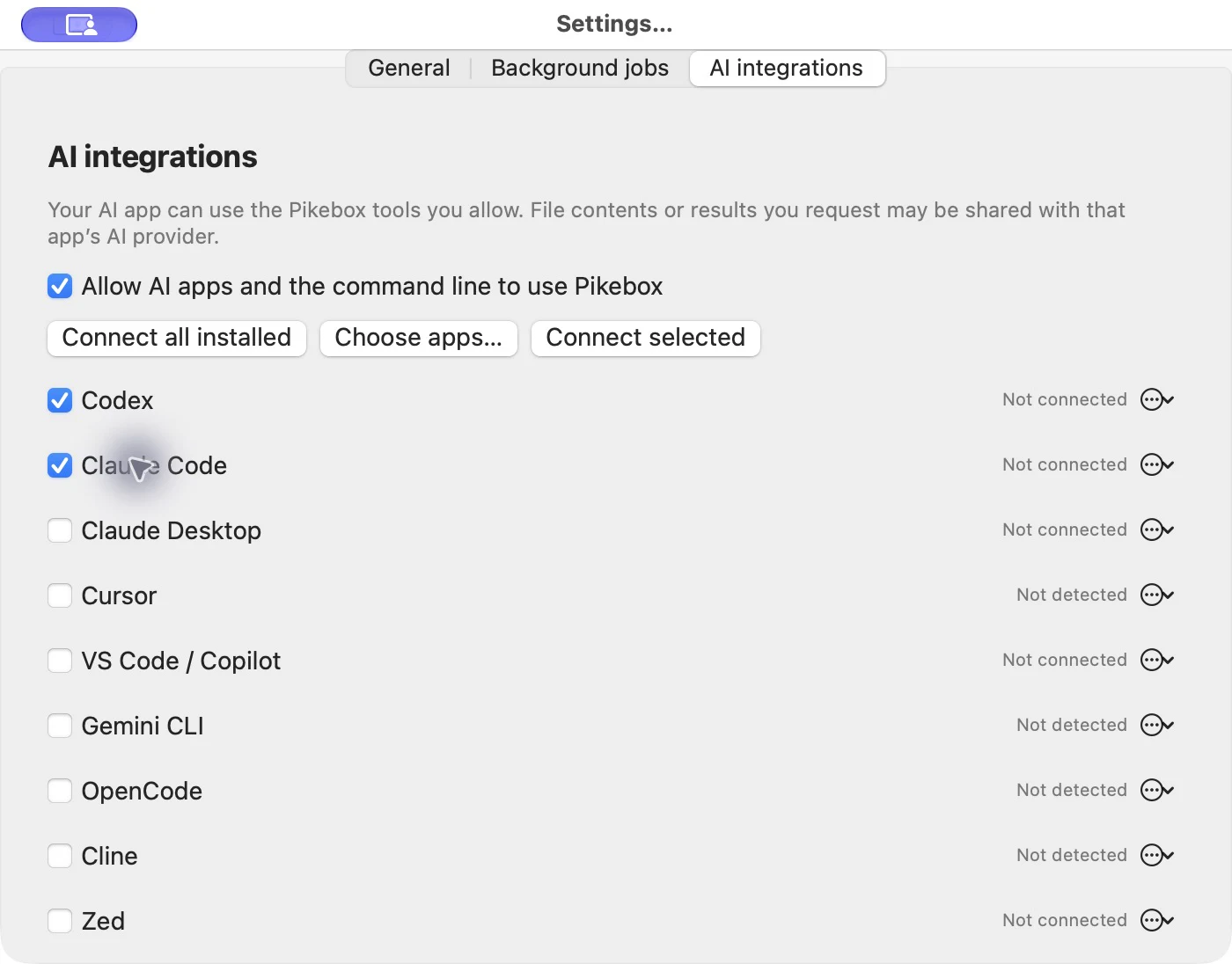
Selection example before connecting. The apps shown are not connected. Mac interface in English.
The choices are Codex, Claude Code, Claude Desktop, Cursor, VS Code/Copilot, Gemini CLI, OpenCode, Cline and Zed. New connections in Settings use personal setup for this Mac user. VS Code/Copilot uses the default Copilot configuration; the VS Code Local harness, named profiles and custom configuration locations need separate host setup. Cline uses its standard shared configuration. Claude Desktop, Cline and Zed use personal scope; Zed does not receive a guidance skill. Claude Code needs an installed command that supports its setup options.
Each app has its own result: successful setup remains in place if another app needs attention. Check the connection in the app and profile you use, as described below.
Approve and end a connection
- Start or reconnect Pikebox’s MCP server from the AI app you just configured. Complete any trust, login or organization approval requested by that app.
- In Settings → AI integrations, find the new request in the session list. Check the displayed process and approve only the connection you just started with Allow this session. An app name is a label, not proof of identity.
- Ask that AI app to use Pikebox to calculate
(2+3)*4. Check that a Pikebox tool was called and returned20; a calculation written by the assistant alone does not check the connection. - Use End session when you want to stop that session’s access. The integration’s settings remain installed.
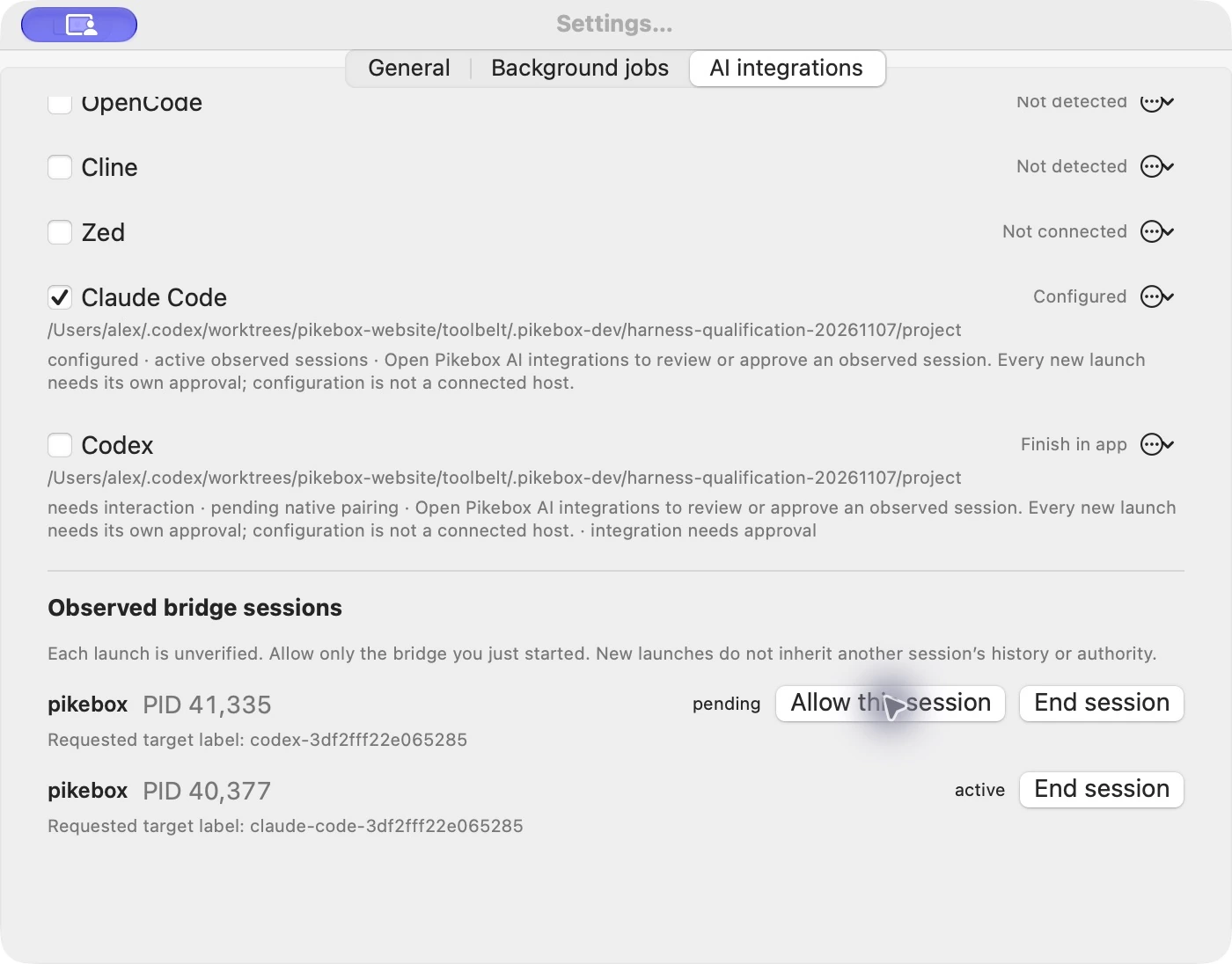
Connection sessions in Pikebox for Mac, shown in English.
Every fresh bridge launch needs its own approval. Approval of one launch does not approve a later launch, even from the same app. Tool discovery may work before approval; running a tool still requires it. If tools are listed but a call is denied, check the new connection request and the global Allow switch in Pikebox.
Files or results you ask an AI app to use may reach its AI provider. Setup does not automatically grant access to your files or permission to run custom programs. File access and custom-program review remain separate Pikebox actions.
Pause, repair or remove integrations
- To pause one app, turn its row switch off. Turn it on again to resume access while keeping the registration.
- To pause all access, turn the global Allow switch off. Turn it on again when you want to resume. The installed configuration remains in place; every new launch still needs session approval.
- For a setup problem, open the app row’s … menu. Check configuration checks setup, Show managed configuration previews Pikebox’s part, and Repair… attempts to repair that managed setup. A configuration check does not invoke a tool from the AI app.
- To remove one integration, choose Remove integration… in its row menu.
- To remove several, click Choose apps…, tick their rows, then click Remove selected. Only selected Pikebox-managed integrations are removed; ticking an unconfigured app does not make it a removal target.
- To remove all managed integrations, click Remove all integrations. This affects Pikebox’s managed entries, including paused ones. It does not mean every detected AI app or another tool’s registrations.
- Read each result and reload the affected AI app if requested. Successfully removed apps are cleared from the selection; apps that still need cleanup remain available for review.
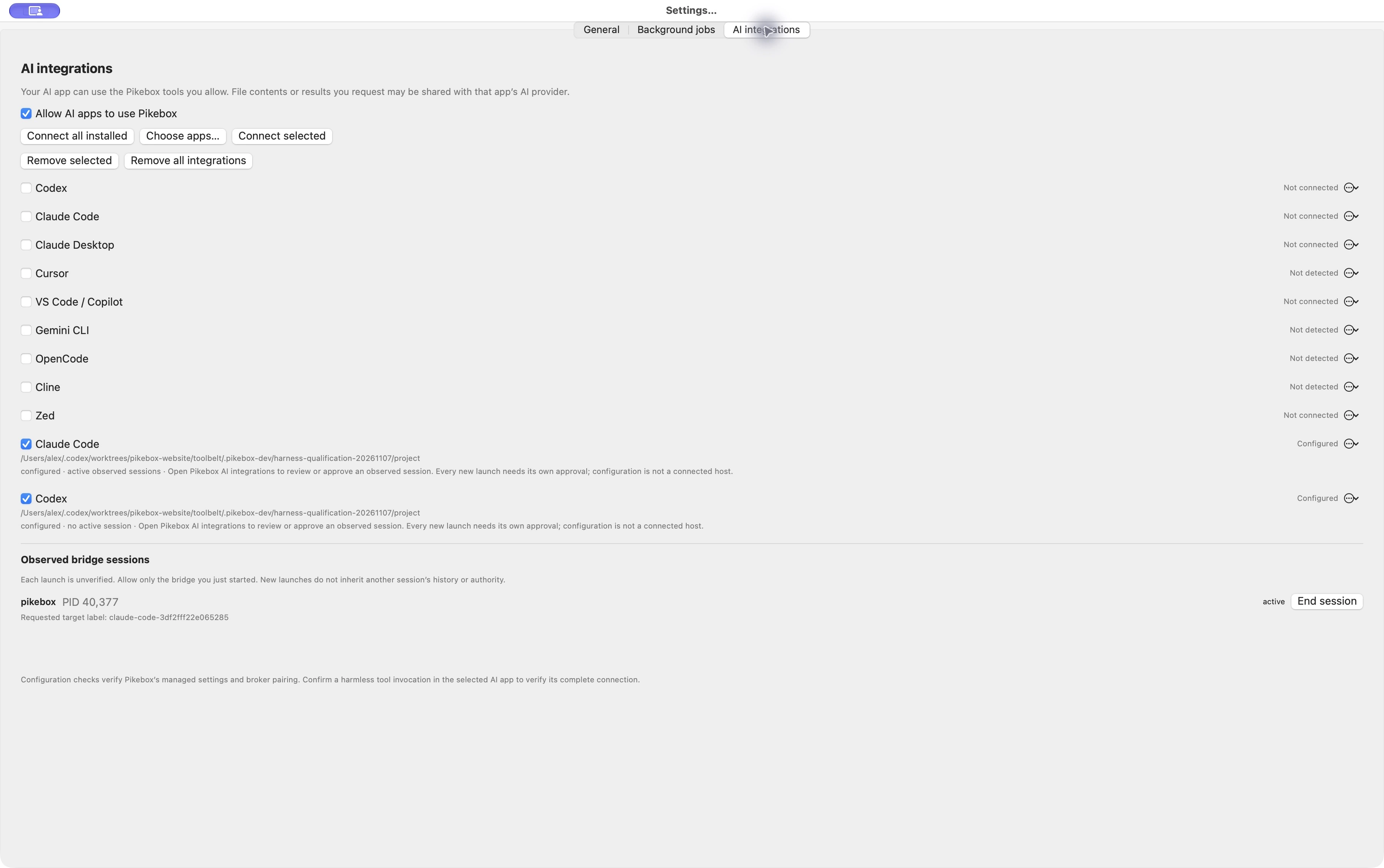
Managed integrations selected for removal, shown in English.
Pikebox stops the selected integration’s access before cleaning up its owned registration and guidance. Removal does not uninstall the AI app or delete workflows, Jobs or saved output. The removal controls are disabled when there is no applicable managed integration.
If a registration or guidance file was edited outside Pikebox, removal may preserve it and report that cleanup needs attention. Access can already be revoked while edited settings remain. Review the named conflict in that app’s settings, keep unrelated entries, and retry only the affected integration. Successful results for other apps remain valid; do not repeat the entire batch just because one app needs attention.
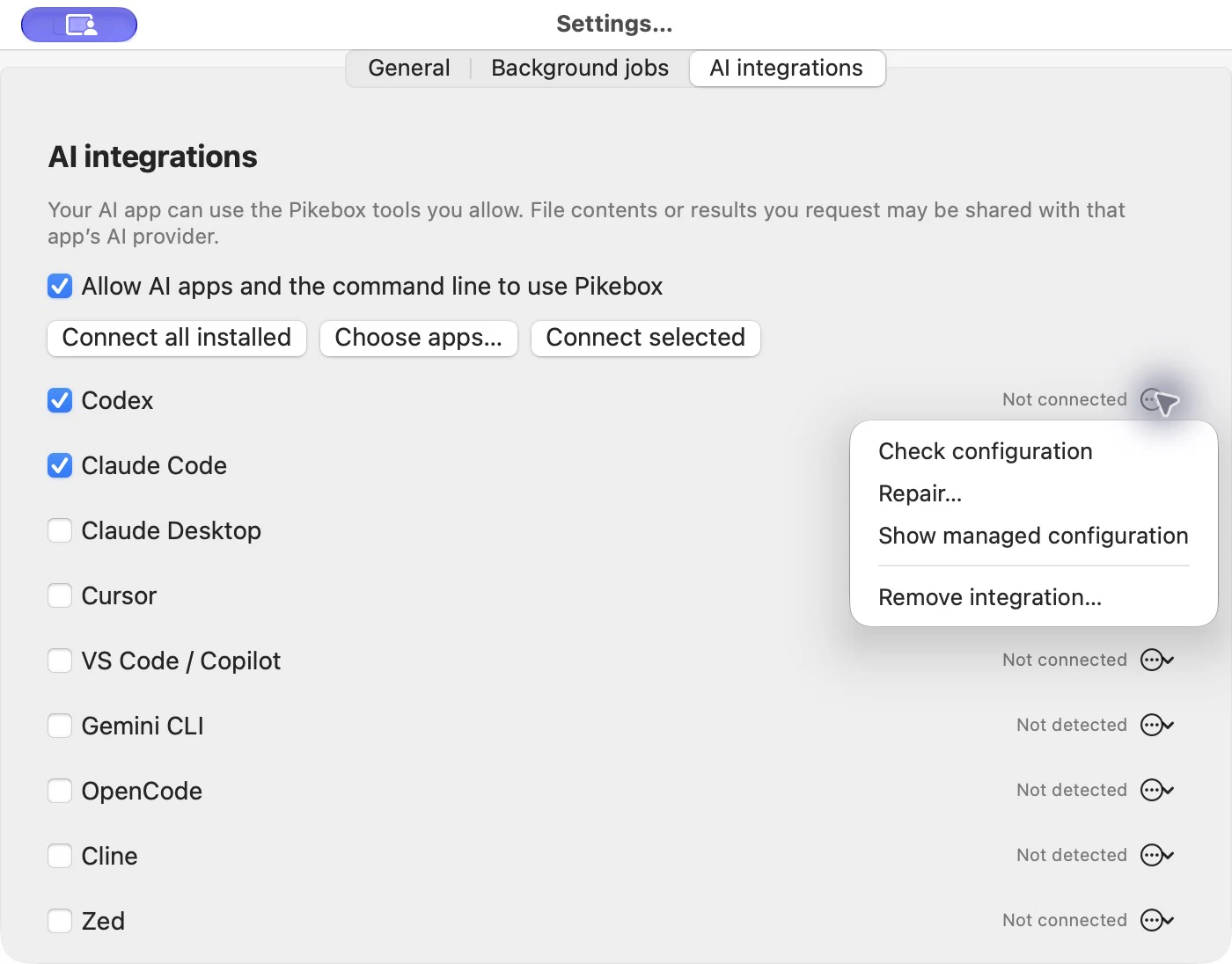
The setup actions, shown in English. No installation or removal was performed for this screenshot.
Use MCP and command-line setup
The normal installer sets up the local MCP bridge. Keep Pikebox available and follow the native session approval above. The guidance skill is optional help for the assistant; copying guidance alone does not install the bridge or approve a session.
For advanced setup, the command line accepts several target IDs separated by commas:
pikebox integrations list
pikebox integrations install --targets codex,cursor --dry-run
pikebox integrations install --targets codex,cursor
pikebox integrations install --all-installed
pikebox integrations doctor --targets codex,cursor
Personal setup is the default. For a project-specific connection in a host that supports project scope, choose an existing folder explicitly:
pikebox integrations install --targets codex,cursor --scope project --project /absolute/path/to/project
For Codex project setup, open the chosen project in Codex and complete its normal project-trust prompt. Then reload Codex or start Codex CLI in that project. Codex needs its saved trust decision and normal user configuration to load the project settings. Pikebox does not grant this host trust for you; it remains separate from approval of each Pikebox bridge launch.
Claude Desktop, Cline and Zed use personal setup only. A custom profile or configuration directory needs its own supported host setup. Project configuration may be shared with a repository; review it before committing. Setup does not grant file access or session approval.
Project integrations created from the command line also appear in Settings → AI integrations, with their folder path below the app name. Use that exact project row to pause, check, repair or remove the integration. Remove all integrations includes these managed project entries as well as personal entries.
For integrations the command line is allowed to manage, removal supports a selected set or all Pikebox-managed entries:
pikebox integrations remove --targets codex,cursor --dry-run
pikebox integrations remove --targets codex,cursor
pikebox integrations remove --all
If a command reports integration_native_review_required, use Settings → AI integrations to pause or remove those entries. This ensures live access is stopped before configuration is cleaned up. --all means Pikebox-managed integrations, not unrelated servers or skills.