

Text and lists
Clean pasted text, reuse messages, remove duplicates, and see how two lists differ.
Clean up text
Paste into Text and choose which changes to make.
- Remove leading and trailing spaces clears whitespace from the beginning and end of the whole text.
- Remove extra spaces reduces runs of spaces or tabs within each line to one space. Join broken lines puts the lines together. Leave it off to keep paragraph breaks.
- Use Letter case to choose Keep as is, lowercase, or UPPERCASE.
Pause to see the updated result. Read it before choosing Copy result, especially if spacing or capitalization carries meaning.
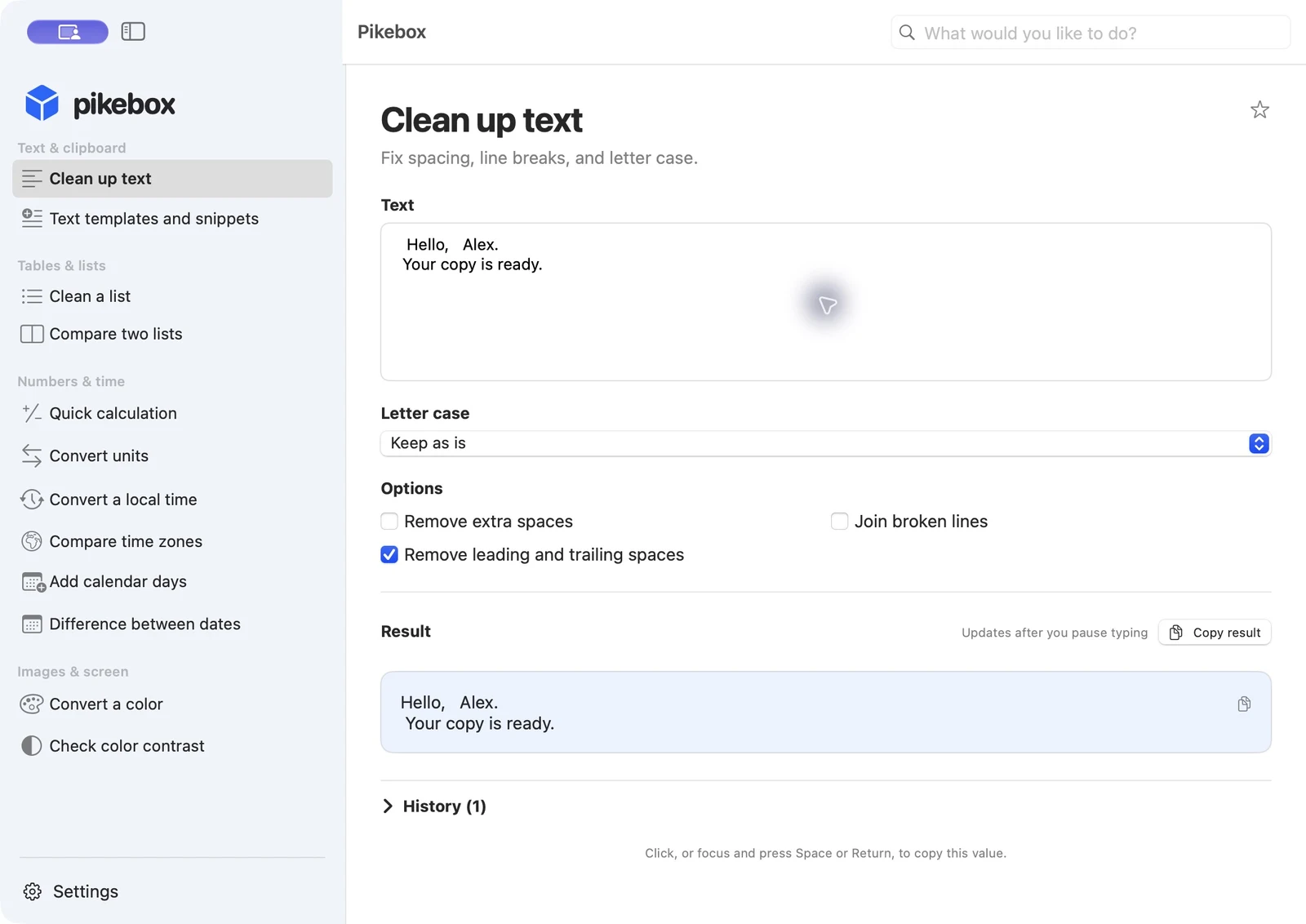
Pikebox for Mac, shown in English.
Text templates and snippets
Write a message you use often, such as Hi {{name}}, your order is ready. In Template mode, Pikebox adds a field for each name in double braces. Repeated names share a field. Enter the values, check the finished message, then choose Copy result and paste it where you need it. Use Plain text to keep the text exactly as written, including the braces.
Choose Save… and give the text a name. Turn on Save filled-in values too only when you want those values to come back the next time. Saved items stay on this Mac. Choose Saved text… to search or reopen them, New for a fresh draft, and Save as new… to keep a separate version. You can delete an item from the saved text list.
If a field is missing, check both pairs of braces and use a name made of letters, digits, underscores, or hyphens.
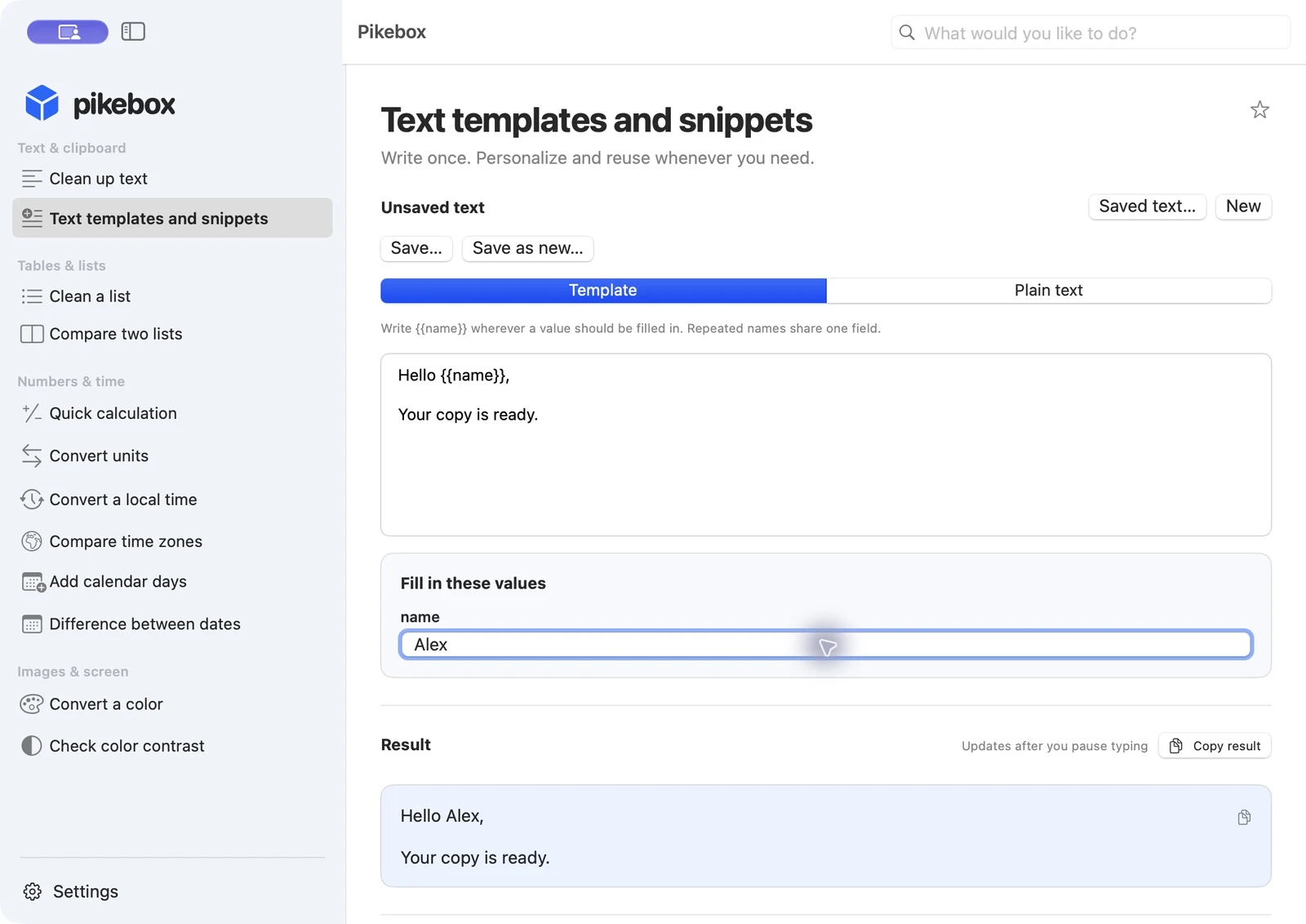
Pikebox for Mac, shown in English.
Clean a list
Paste your entries into List, one per line. Pikebox keeps the first copy of each repeated item. Remove leading and trailing spaces and Remove empty items are on by default. Turn on Ignore letter case to treat Apple and apple as the same item. Turn on Sort results to sort the result. Leave it off to keep the order of first appearances.
Check how many items were removed and choose Copy result. If you have more than 10,000 entries, split them into smaller lists. For duplicates across the entire list, compare the cleaned parts before combining them.
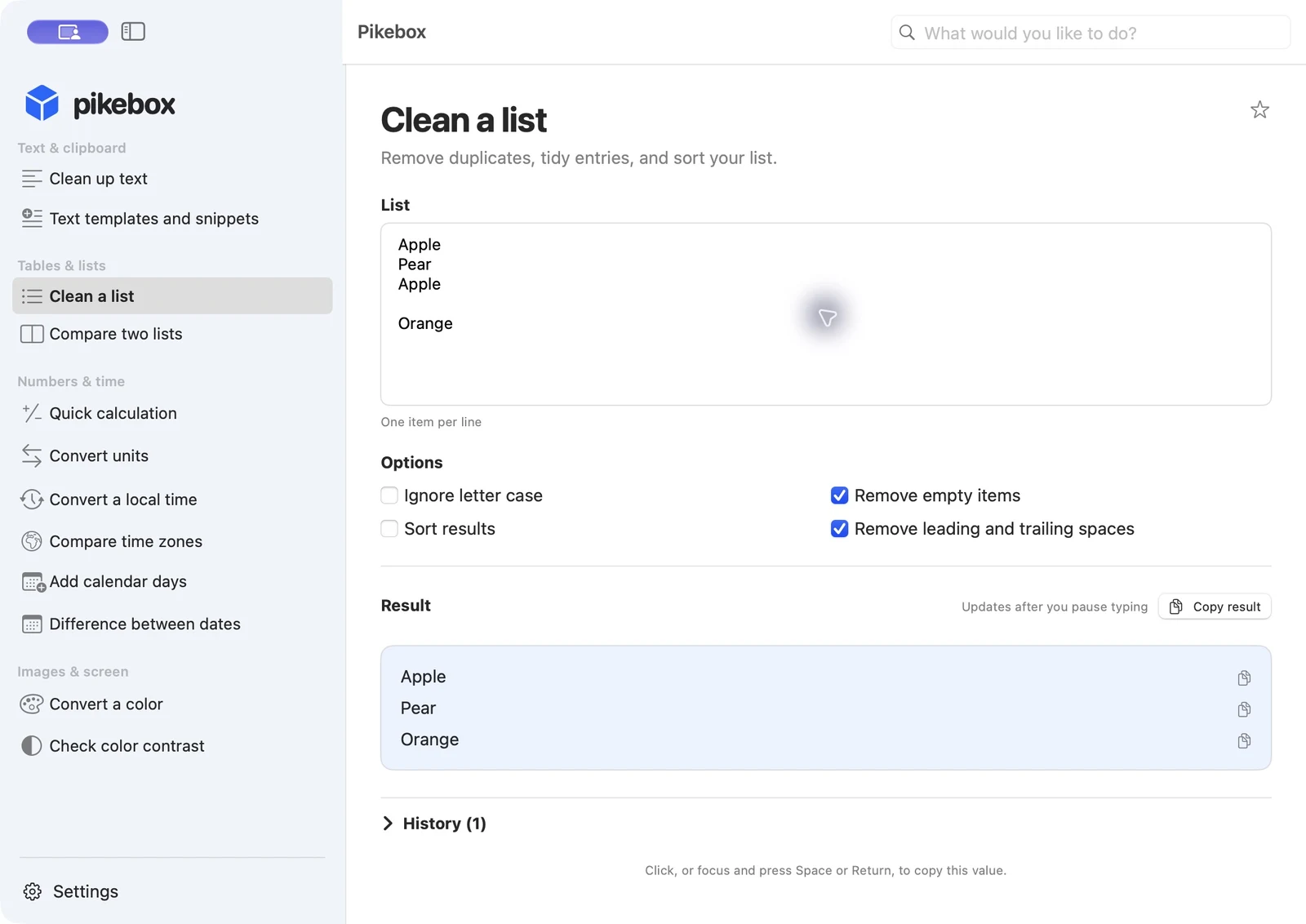
Pikebox for Mac, shown in English.
Compare two lists
Paste one item per line into First list and Second list. Choose whether spaces at the ends and differences in capitalization should count. If your lists contain IDs, check the case setting before comparing.
Read In both lists, Only in the first list, and Only in the second list. Repeated items appear once in each relevant result. For example, compare apple and pear in the first list with pear and plum in the second. pear appears in both. Use Copy result to take the comparison with you.
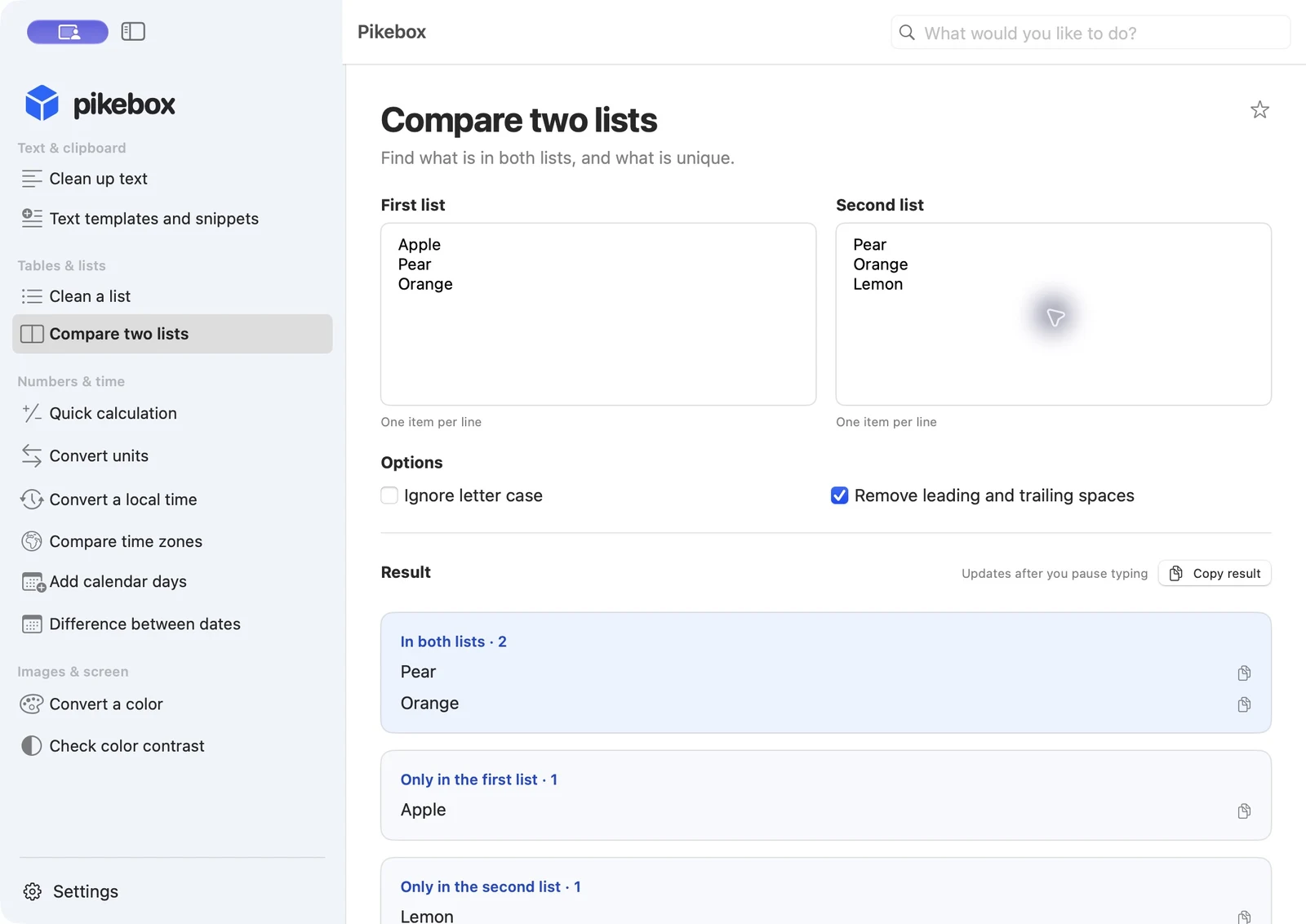
Pikebox for Mac, shown in English.